How to create a Google Sheets – LinkedIn bundle using Zapier?

Easily link Google Tables with LinkedIn using Zapier. Our detailed guide on automating user creation and addition simplifies the process, increasing productivity and saving time.
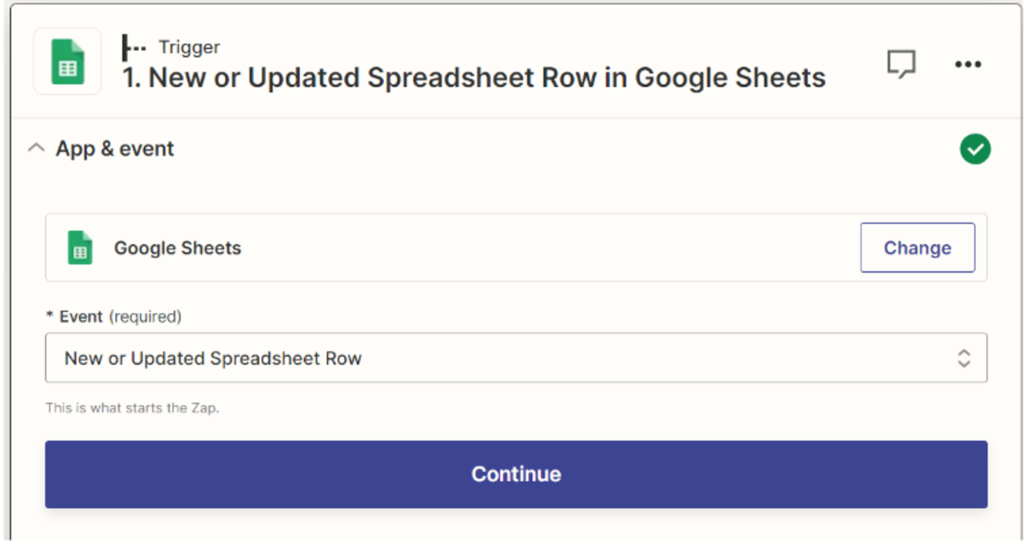
Create a new connection (Create Zap) and select the start trigger (Google Sheets – New or updated spreadsheet row)
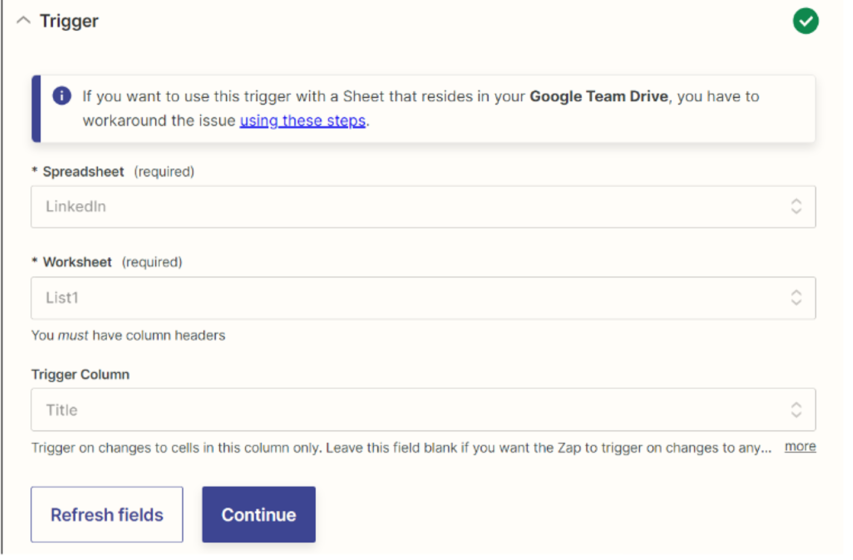
Connect our Google account and select the necessary document and spreadsheet, as well as specify which column will serve as the trigger for the integration (in our case, it is Title).
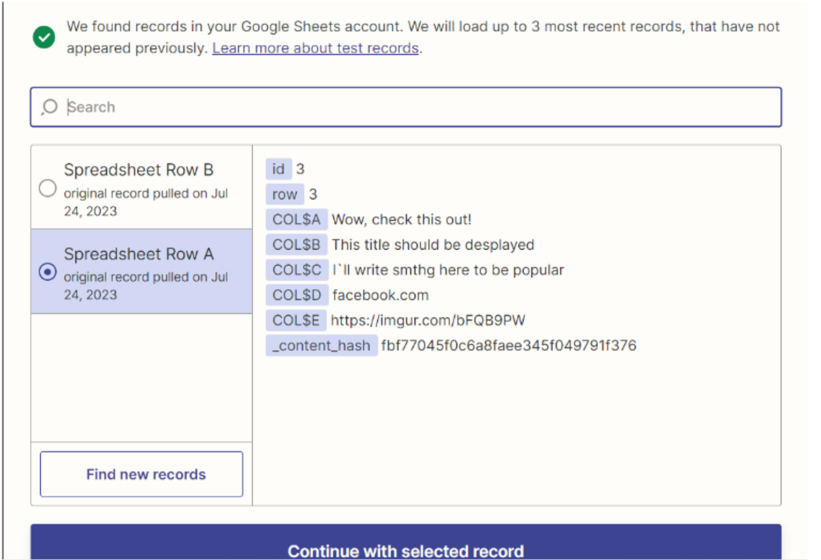
Next, we need to conduct a test and select the relevant data row, based on which the initial test will be performed, and a LinkedIn post will be created.
Next, we need to choose where our data will be transmitted. We need LinkedIn, and for the event, we select “Create Share Update”.

After that, we connect our account and proceed to select the data that needs to be transmitted.
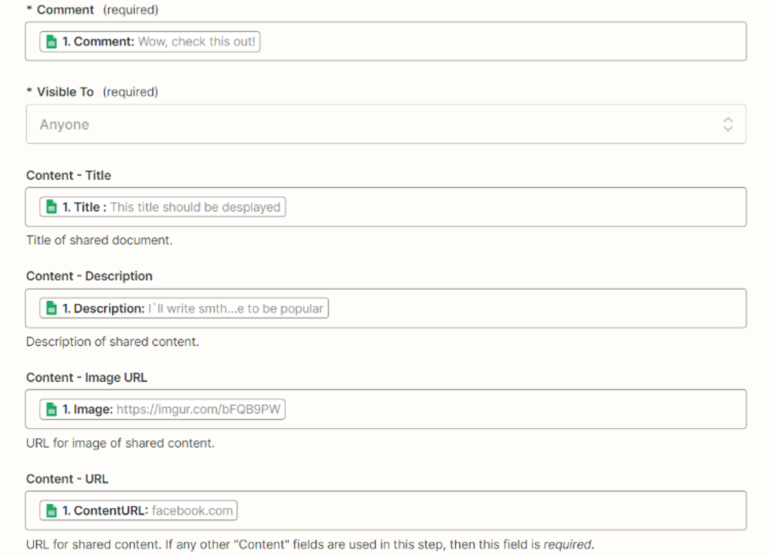
- Comment – what will be displayed before the post on our behalf.
- Title – the title of the post.
- Description – the description of the post, which will be located at the bottom.
- Links to the article and image.

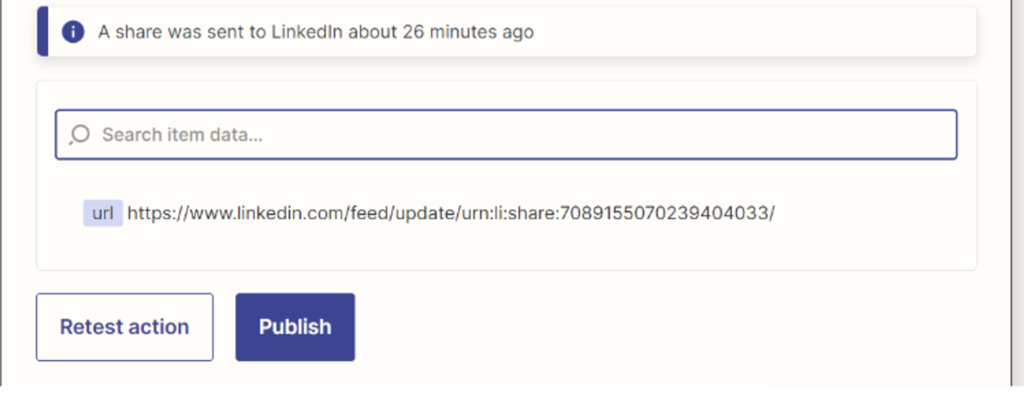
After that, we perform the test and copy the link to our post. We follow the link and see that it has been successfully created.