How to create a Google Sheets-Notion bundle using Zapier?

Easily coordinate workflows by integrating Google Sheets and Notion, automating data transfer for better collaboration. Enable smooth company function with this way.
When we add a new line to the document, we create a corresponding sheet in the required category.
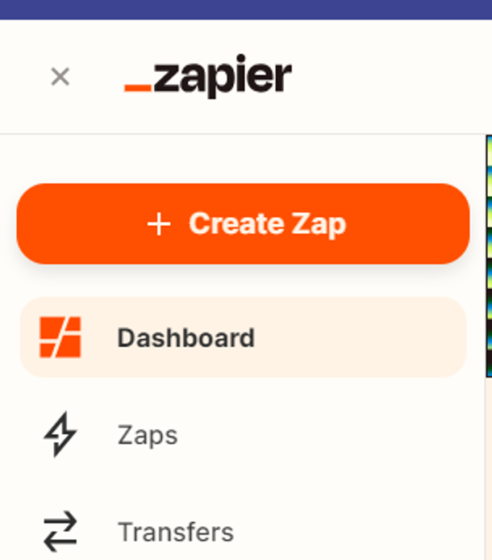
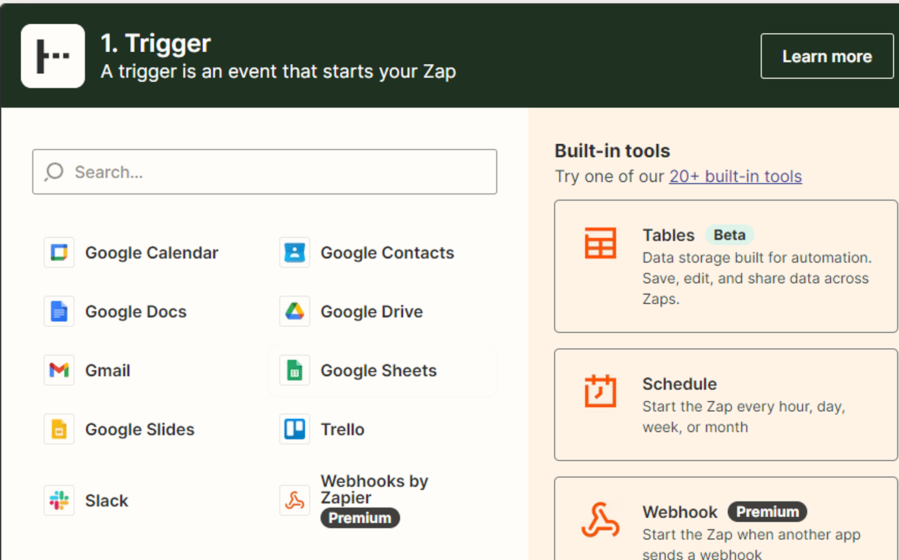
Let’s create a new Zap and choose a platform from where our data will come from. In our case, it’s Google Sheets.
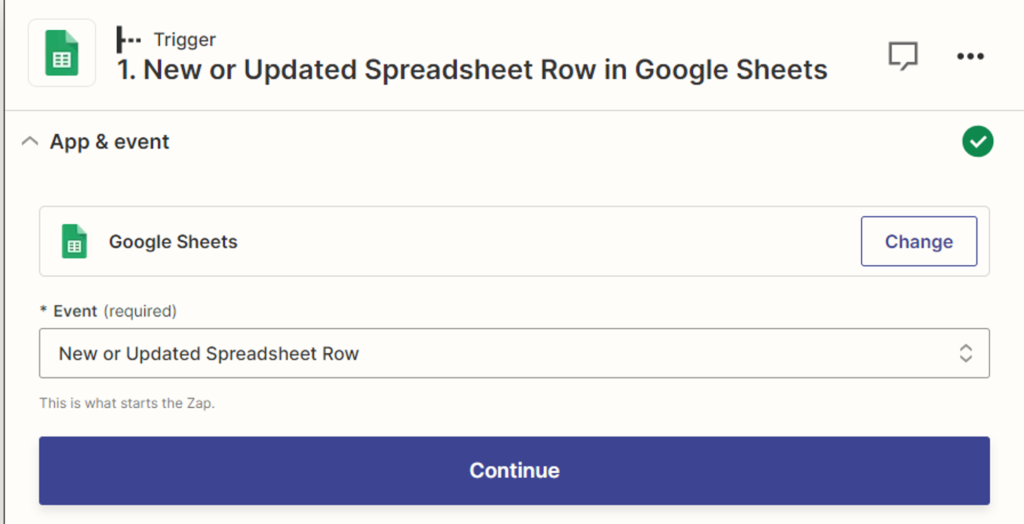
Next, we need to select a trigger event, which will activate our bundle.
Select “New or updated spreadsheet row”. After that, we connect our Google account, provide access, and select the desired table – sheet. Specify the trigger column, which will be used to add data to Notion; in our case, it is Title.
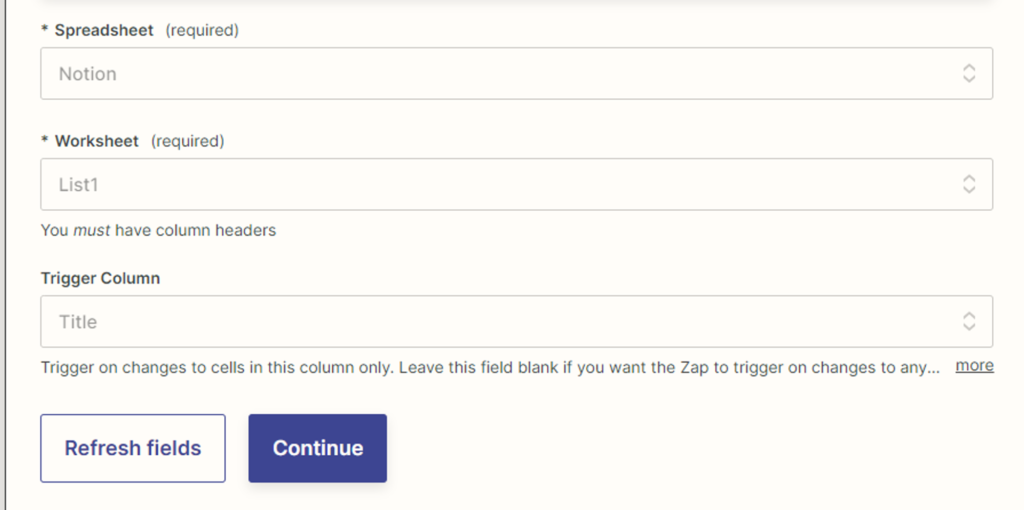
Next, we run the test, and Zapier finds the data we need, which we have previously added to the document.
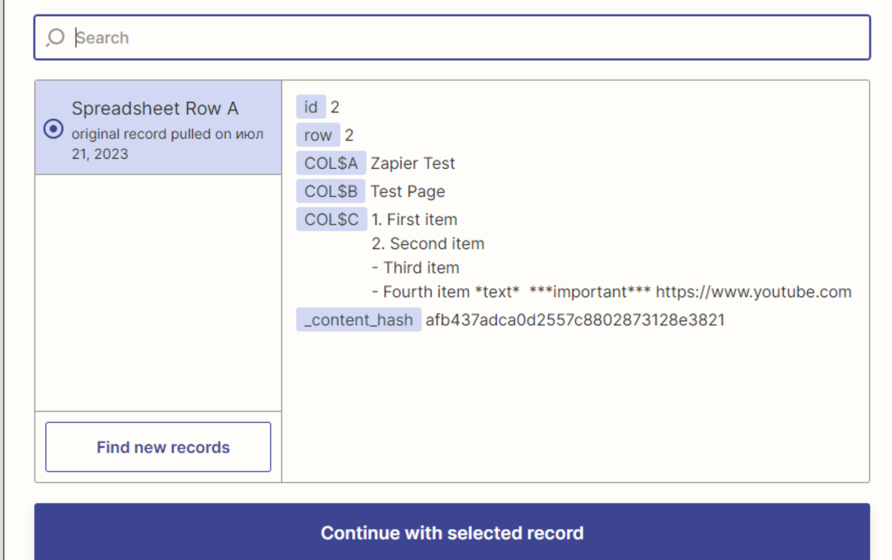
Click “Continue” and then select the platform where our data will be transferred to – Notion. We also need to specify the event that will occur when data is added to our Google Sheets document. (Create page)
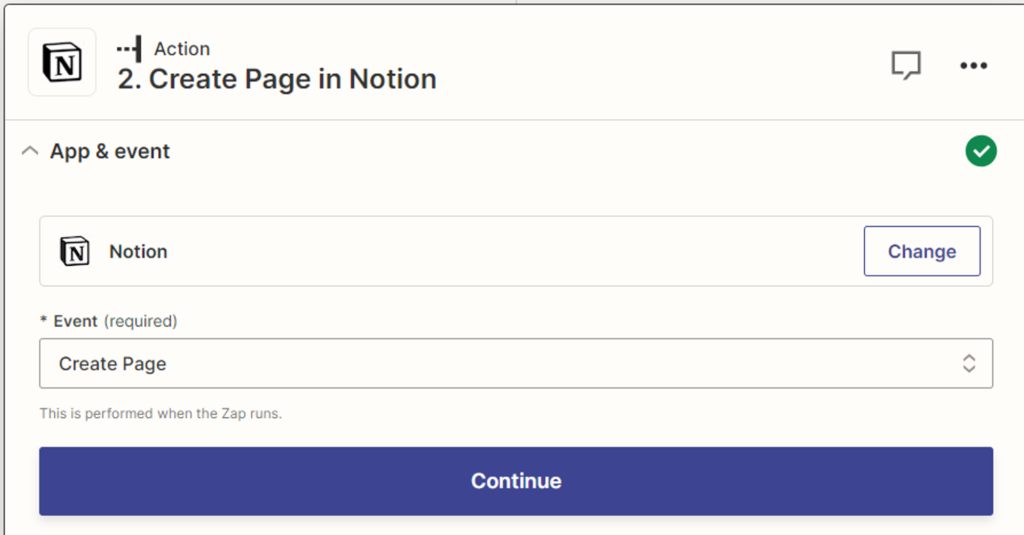
Next, we connect our Notion account and provide the accesses.
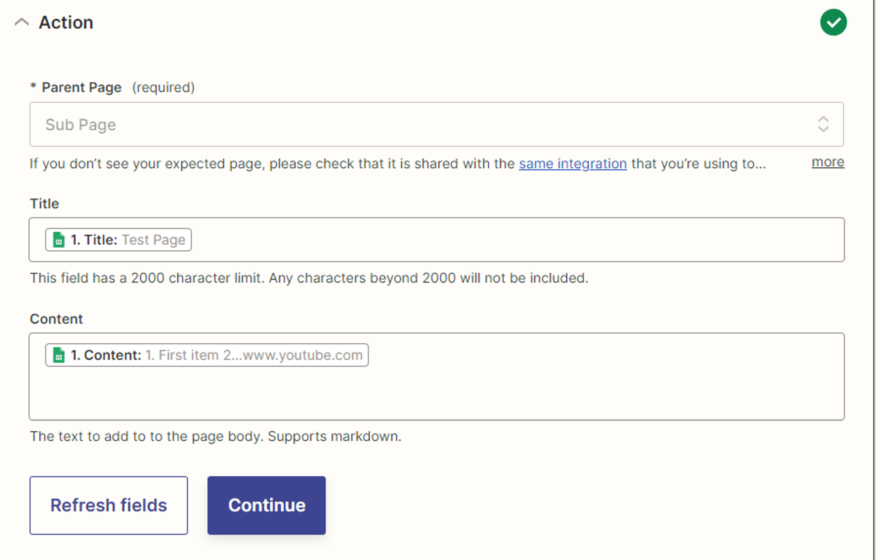
Select the data from the table that will be passed to Notion. They have already been pre-defined in the document.
- The page on which our document will be created.
- The name of our document that will be passed to Notion.
- Content – this field accepts the text data. There is also an opportunity to specify tags. The full list of tags that can be transferred to this field is prescribed **here.**
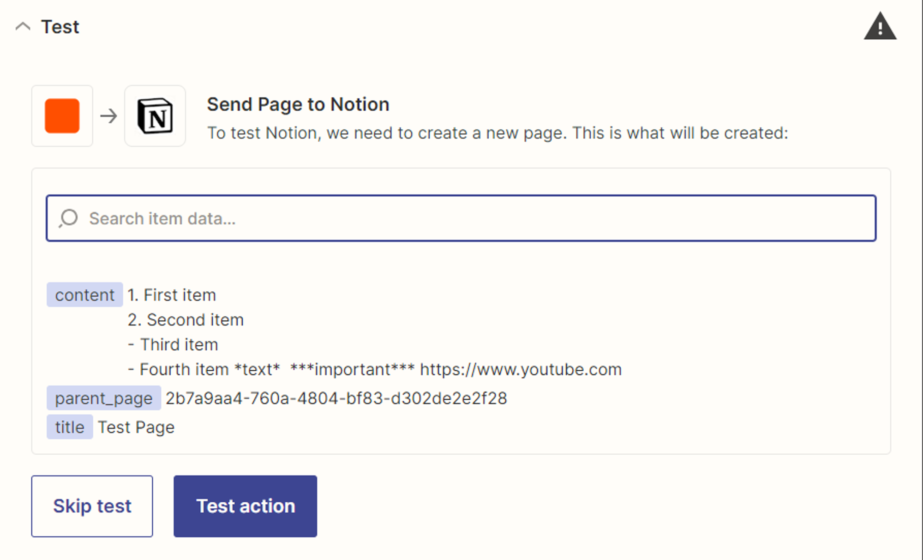
Click “Continue” and complete the test.
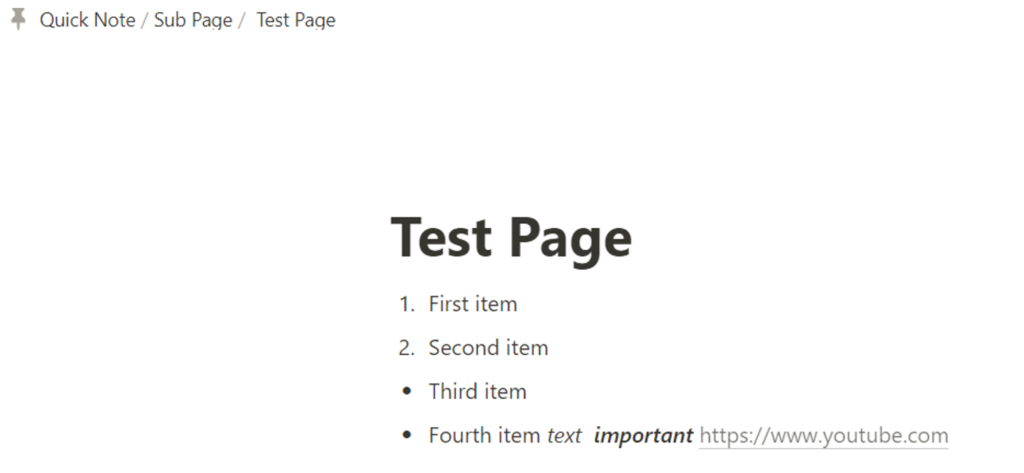
After we get the message that the test was successful, go to Notion, open the page, and see that our data has been transferred.
Setting up the Google Sheets – Notion combination is complete.

