How to create Google Spreadsheet – Close bundle using Zapier?

Unlock the potential of Google Spreadsheet with Zapier integration. Updating leads in Close will be a simple matter and will also improve efficiency. Try our guide now!
Creating a new lead or updating an existing lead in Close when a new row is created in Google Spreadsheet.
How this integration works:
- When data in a specific column of Google Spreadsheet changes,
- Zapier searches for a lead in Close.
- If the lead exists, Zapier updates the field.
- If the lead is not present, Zapier creates a new lead.
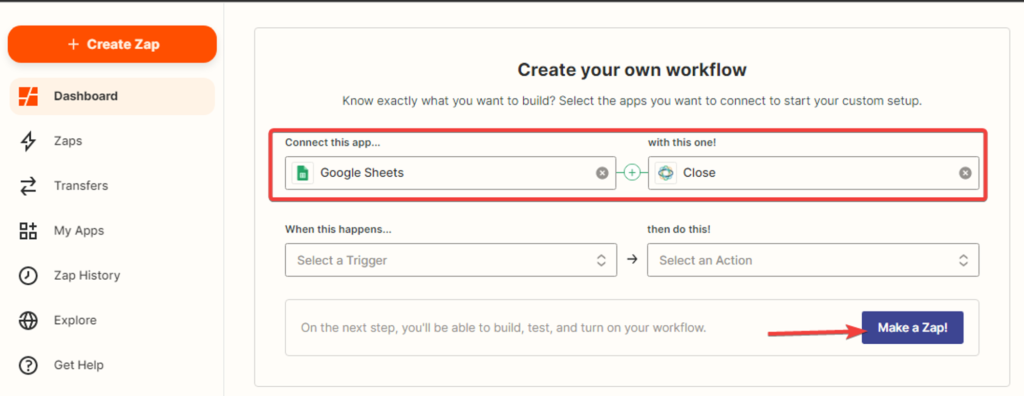
1. Creating a Zap. While on the “Dashboard” tab, select the applications “HubSpot” and “Airtable” and click the “Make a Zap” button.
Configuring the trigger event in Google Spreadsheet
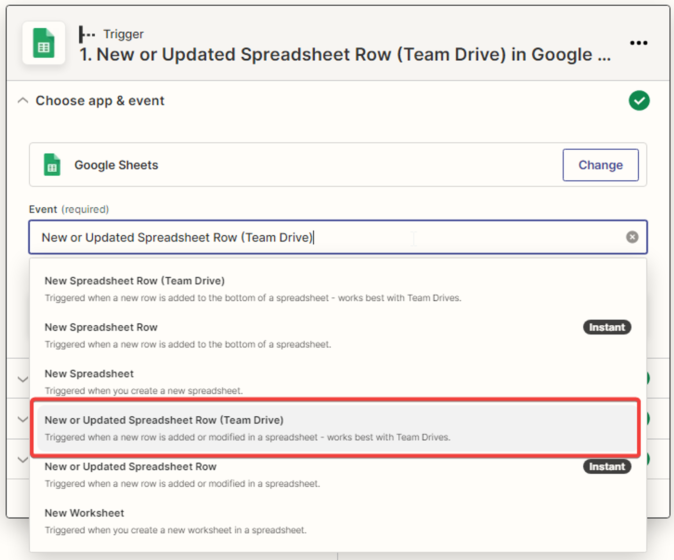
2. Choosing the trigger event. Select ‘New or Updated Spreadsheet Row’ from the dropdown list and click ‘Continue. ‘ The trigger will activate when a new row is added to the leads table in Google Spreadsheet.
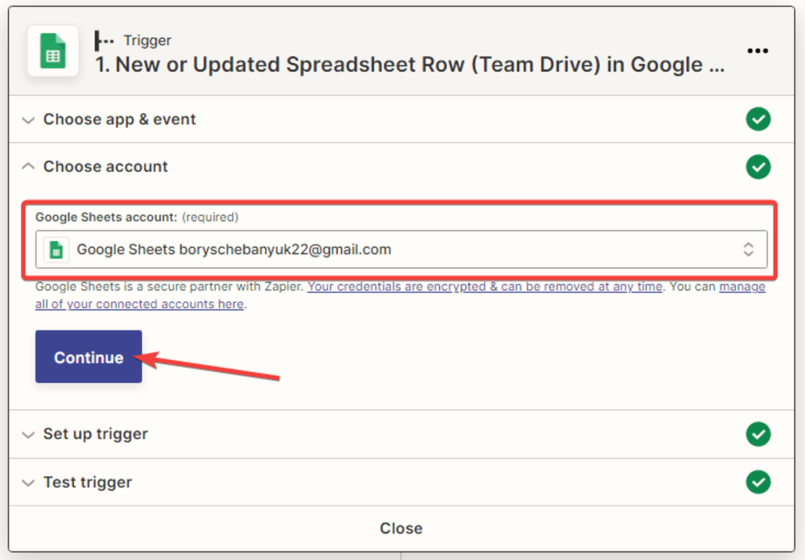
3. Next, you need to select the ‘Google’ account and click the ‘Continue’ button.
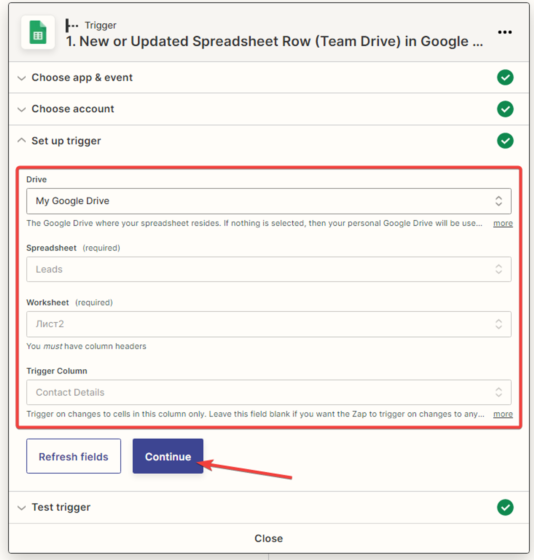
4. Next, you need to specify the settings for the trigger and click the ‘Continue’ button.
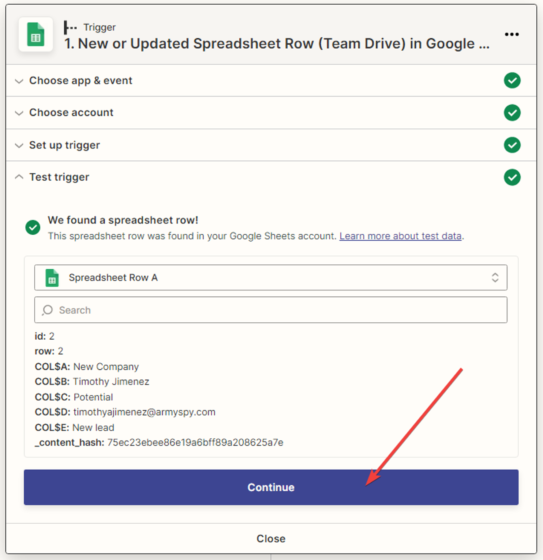
5. The next step is for the system to find the lead in Google Spreadsheet and display all available information. Click the ‘Continue’ button.
Configuring the action in the ‘Close’ service.
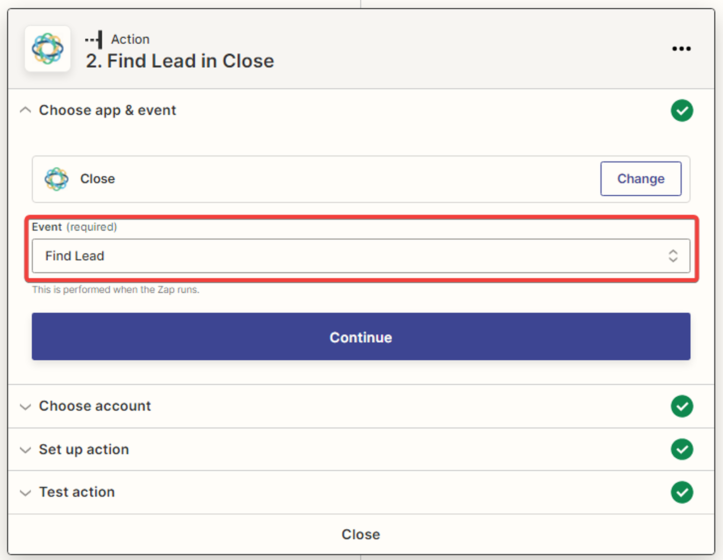
6. In the next window, you need to specify the action that will be performed when a field in the Google Spreadsheet lead row is changed. For the ‘Close’ application, choose ‘Find Lead’ and click ‘Continue’.
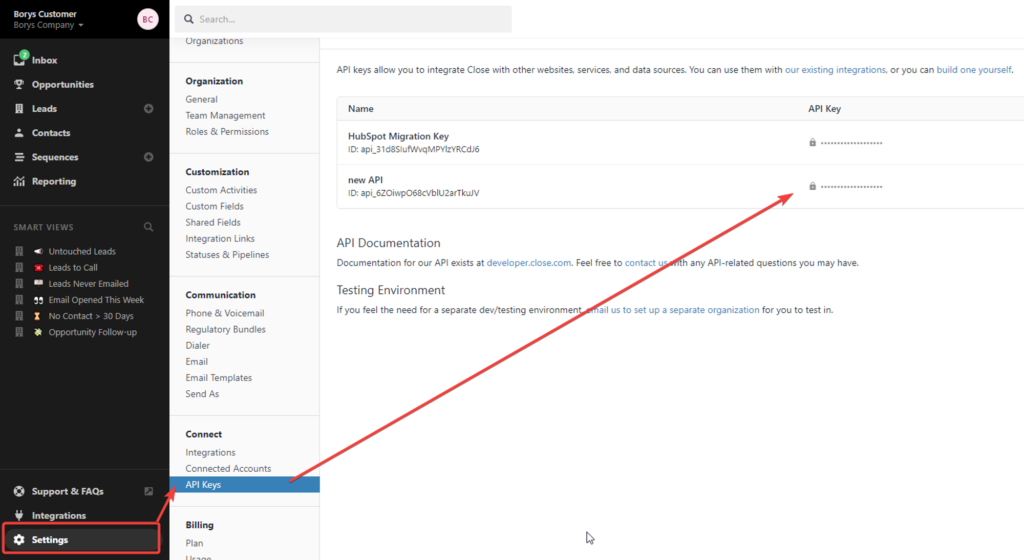
7. Next, you need to connect the ‘Close’ account. Generate an API key in your Close account.
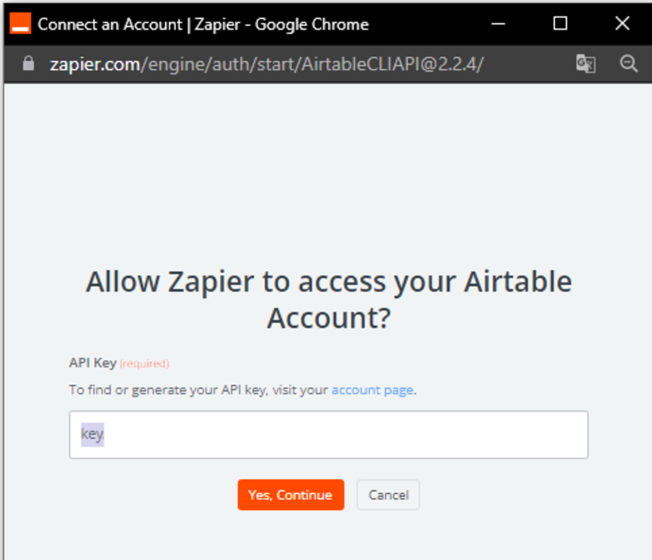
In the new Zapier window, paste the API key into the corresponding field and click the ‘Yes, Continue’ button.
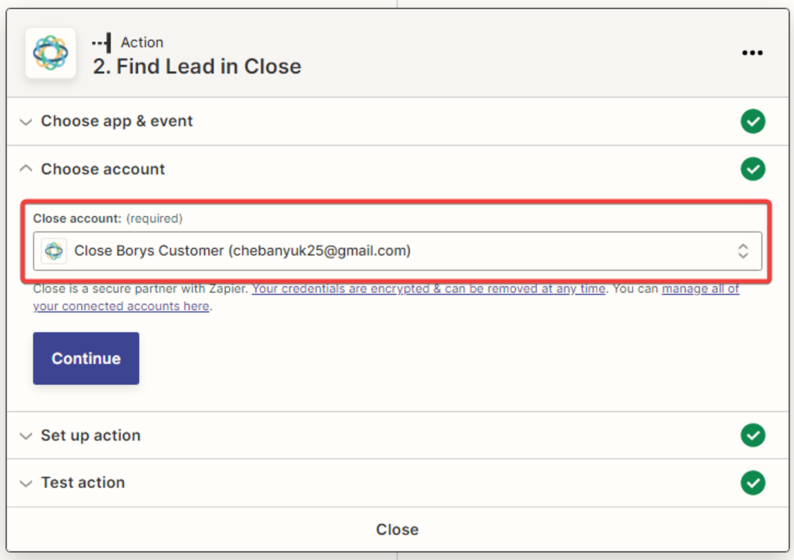
Click the ‘Continue’ button.
8. Next, you need to set up the connection between the ‘Google Spreadsheet’ and ‘Close’ applications. Fill in the required fields based on which the search will be performed. After filling in the fields, click the ‘Continue’ button.
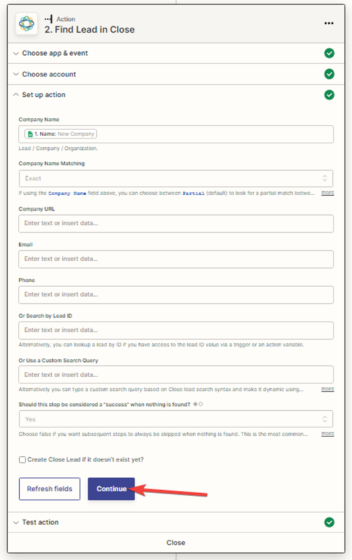
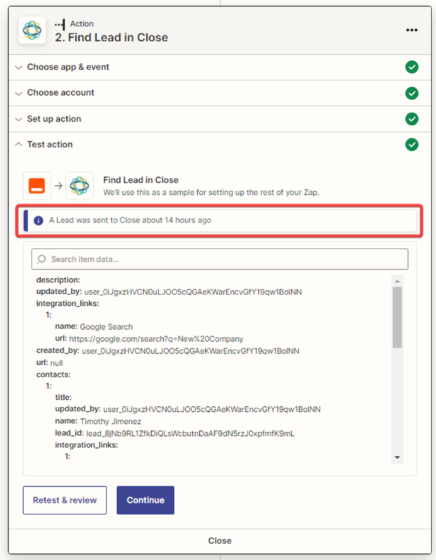
9. You need to test the connection between ‘Google Spreadsheet’ and ‘Close.’
10. Test data has been sent to ‘Close’.
11. Next, you need to configure the Paths for Zap execution. In our case, we need to set up two paths.
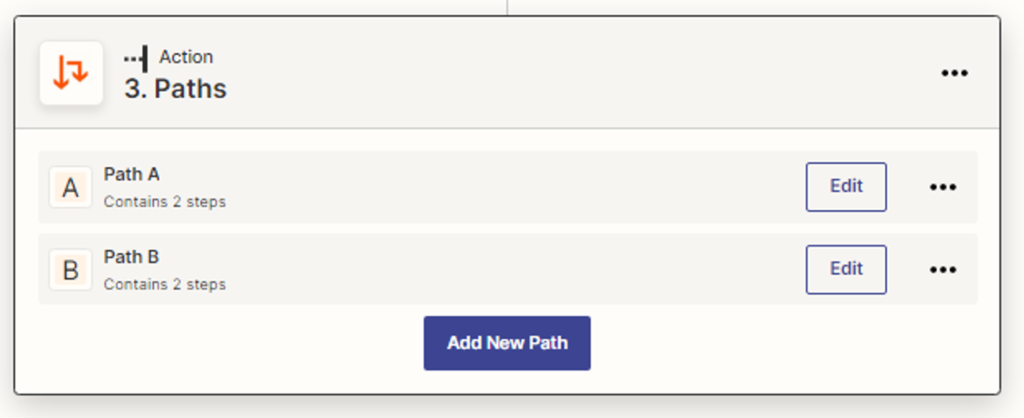
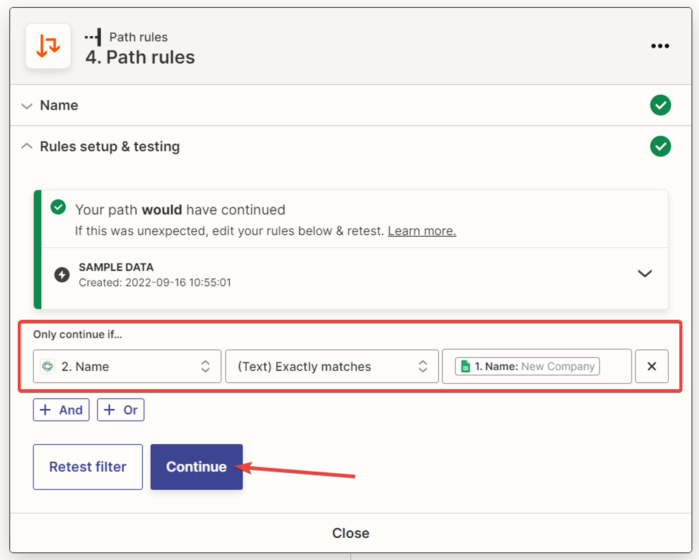
We set up the rule for Path A. We continue if the lead name in ‘Google Spreadsheet’ exactly matches the company name (specify the variable ‘Name’ in ‘Close’). Click the ‘Continue’ button.
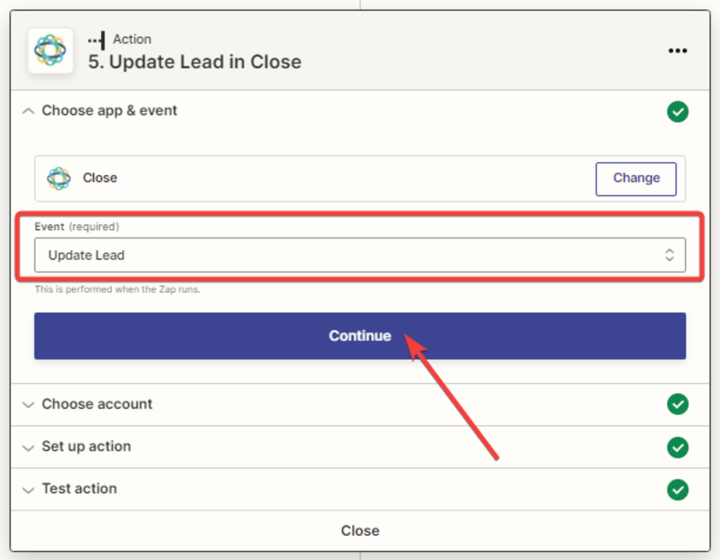
You need to specify the action that will be performed in ‘Close’ when the rule is met. Choose ‘Update Lead’ and click ‘Continue’.
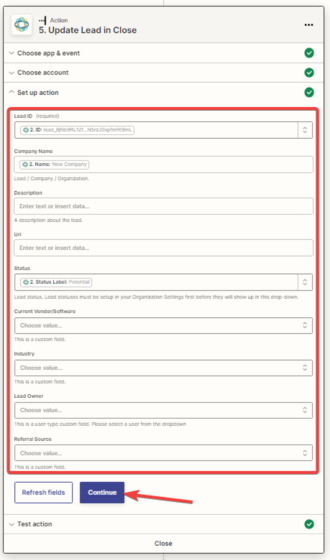
Fill in the required and optional fields, then click ‘Continue’.
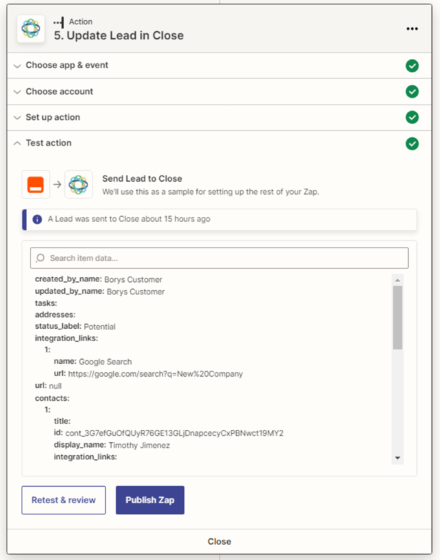
You need to test the connection.
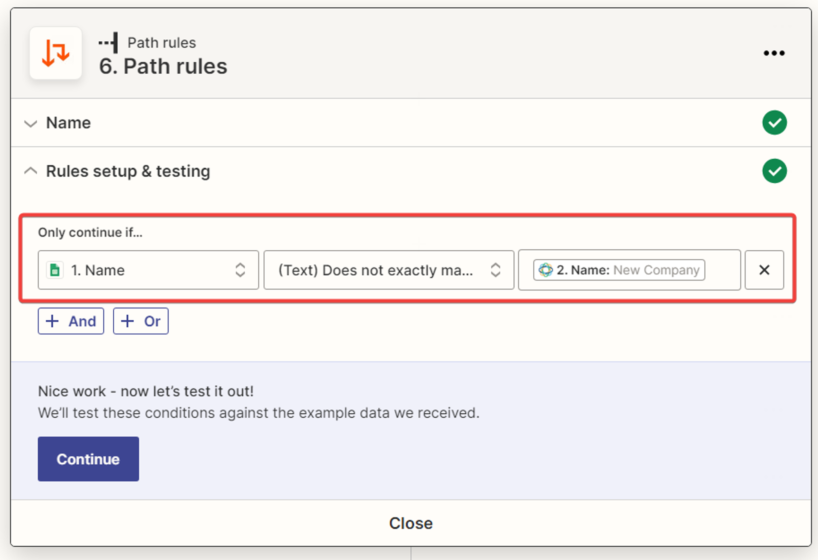
We set up the rule for Path B. We continue if the lead name in ‘Google Spreadsheet’ does not match the company name (specify the variable ‘Name’ in ‘Close’). Click the ‘Continue’ button.
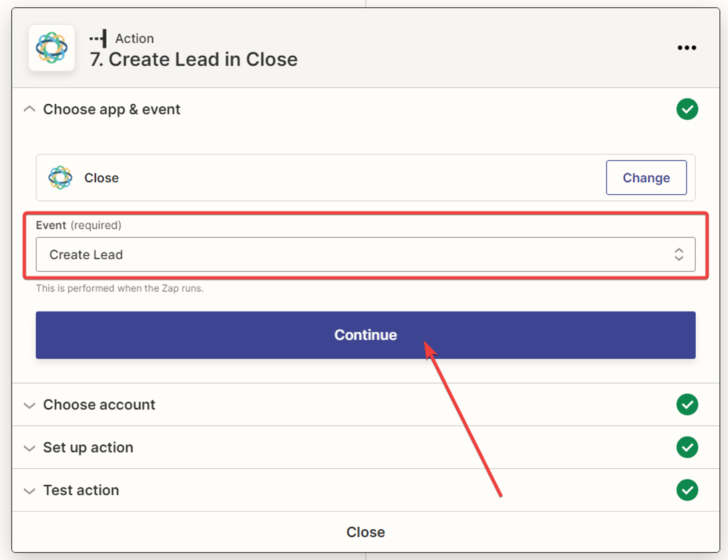
You need to specify the action that will be performed in ‘Close’ with the given rule. Choose ‘Create Lead’ and click ‘Continue’.
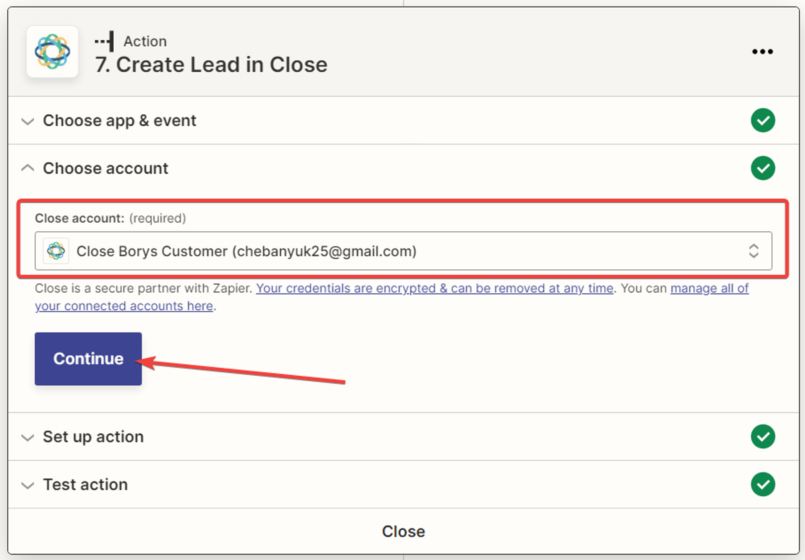
Next, you need to connect the ‘Close’ account.
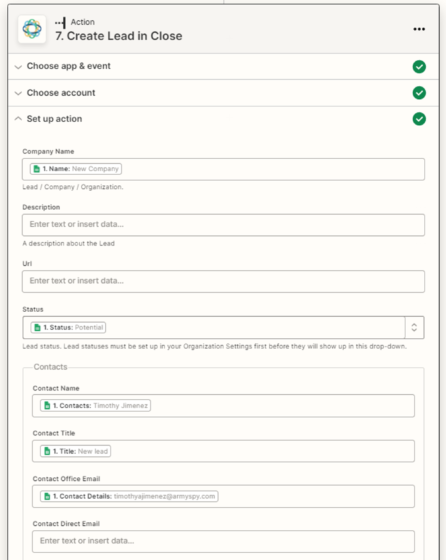
Fill in the fields and click ‘Continue’.

You need to test the connection
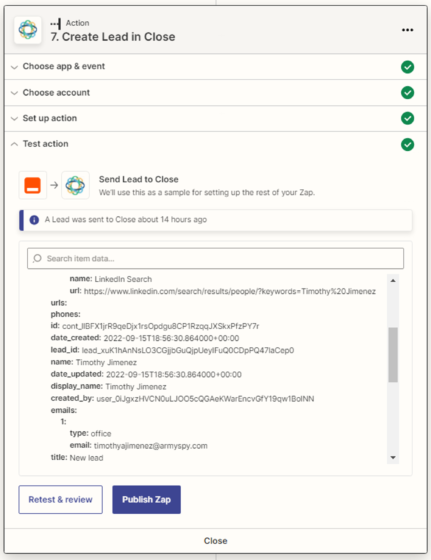
12. After a successful test, click the ‘Publish Zap’ button.

