How to integrate Formidable Forms (WordPress) – AirTable bundle using Zapier?

Automate your data flow with our Formidable Forms-AirTable Zapier integration. Easily synchronize your WordPress form submissions with AirTable, improving data management efficiency and availability.
Synchronizing Formidable Forms (WordPress) information with AirTable
How the Integration Works:
- A user fills out and submits a form on a WordPress website;
- the web interceptor Zapier syncs the Formidable Forms data with AirTable.
Conditions for Executing Zap
In the WordPress dashboard, the following plugins and addons should be connected:
- Formidable Forms
- WP Webhooks
- Zapier for WordPress

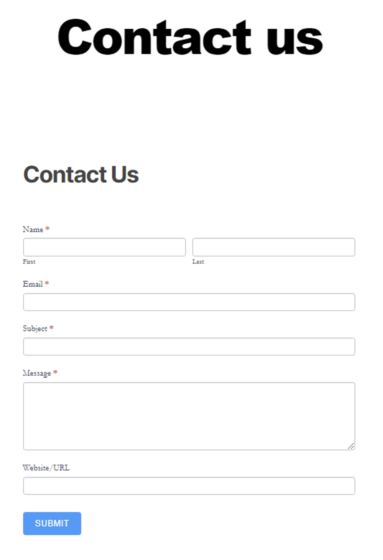
A Formidable Forms form for the user’s site must be created.

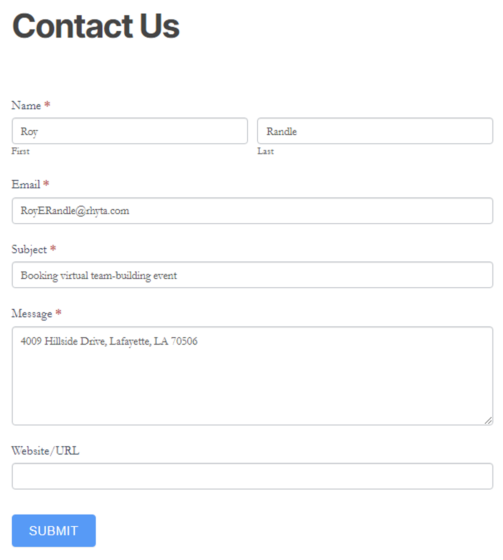
After configuring all the necessary form fields, the form will look something like this:
1. Creating a Zap. While on the “Dashboard” tab, select the applications “Webhooks by Zapier” and “AirTable” and click the “Make a Zap” button:
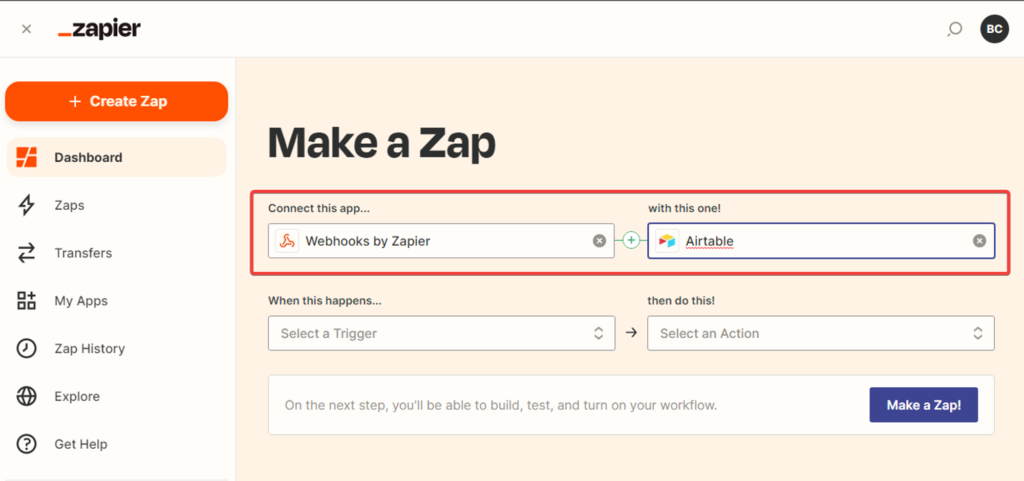
Configuring the trigger event in the Zapier application “Webhooks by Zapier.”
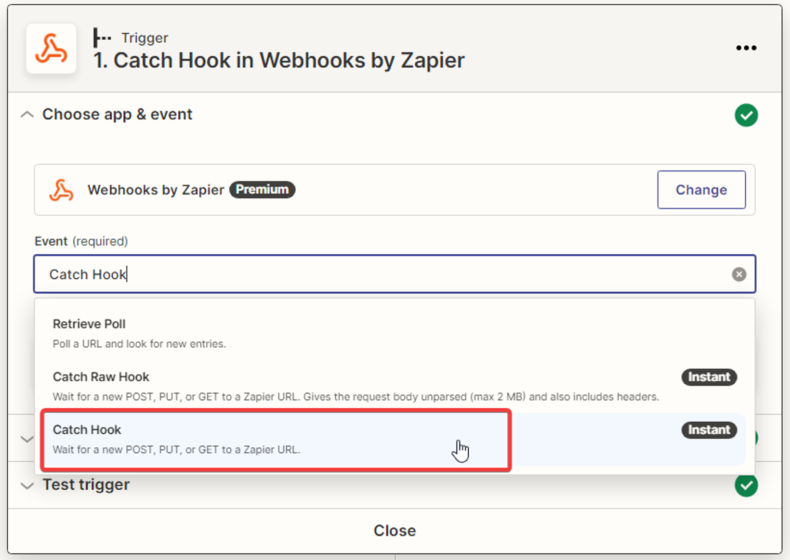
2. Select the trigger event. Choose “Catch Hook” from the drop-down list and click “Continue.” The trigger will activate when a new POST, PUT, or GET request is created for the Zapier URL.
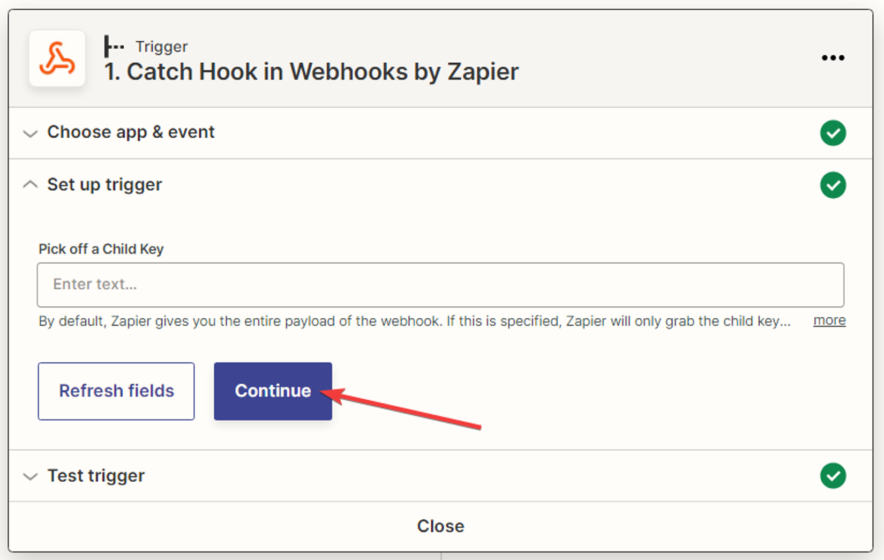
3. On the next step, there is no need to choose or enter anything; just click “Continue.”
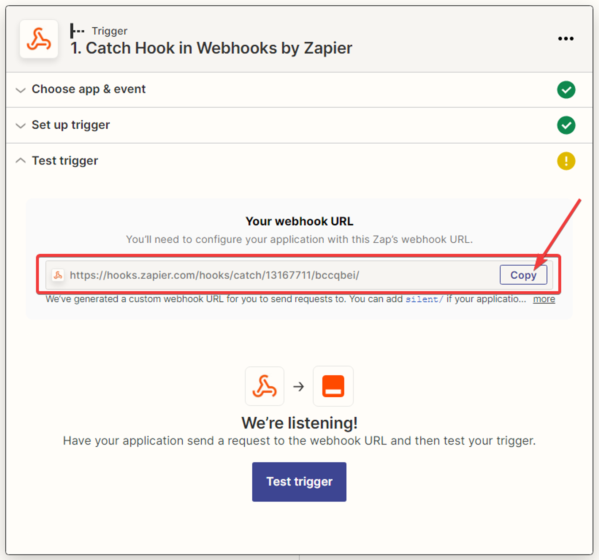
4. Next, you need to copy the Zapier webhook URL by clicking the “Copy” button in the next window.
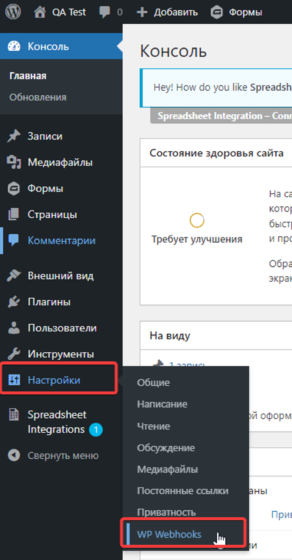
5. Next, open the WordPress application and configure the webhook. On the toolbar, click “Settings” – “WP Webhooks.”
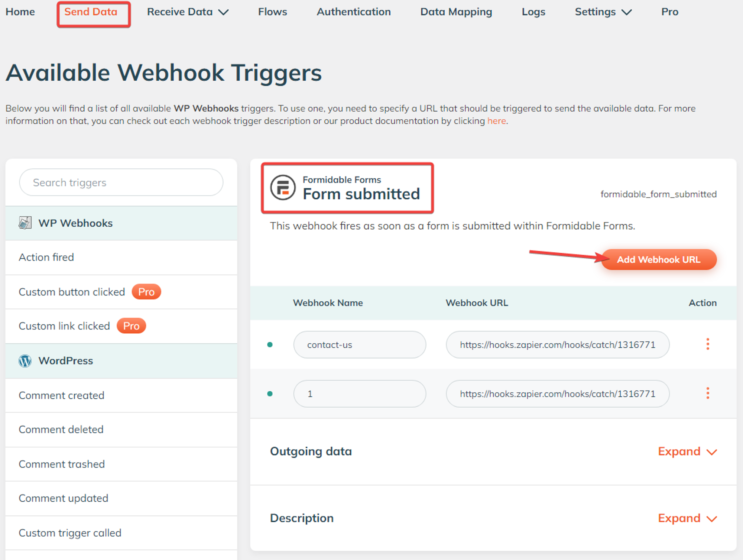
6. In the next opened window, go to the “Send Data” tab – Formidable Forms section – “Form submitted” item, and click the “Add Webhook URL” button.
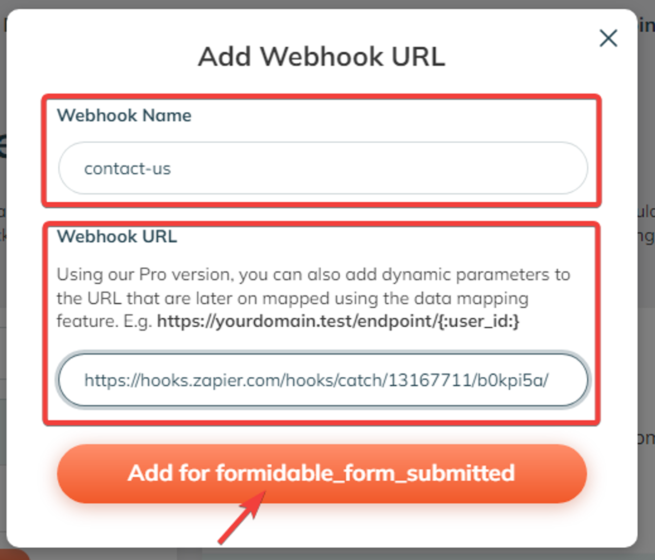
7. In the opened window, give a name to the webhook and paste the copied URL from Zapier, then click the “Add for formidable_form_submitted” button.
8. Once the data is submitted through the form, click the “Submit” button to send the information for testing.
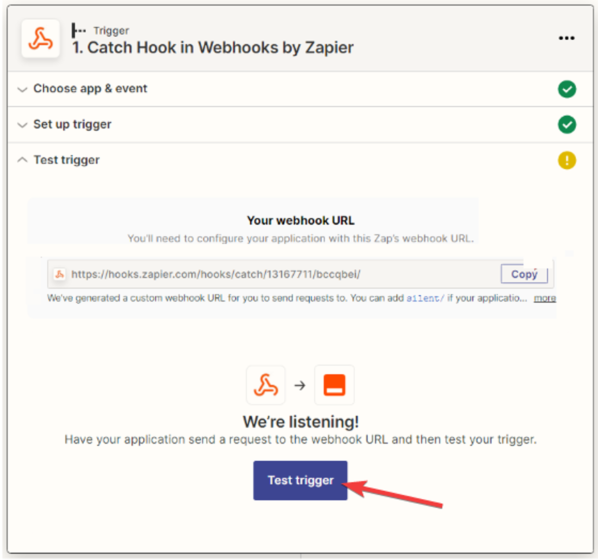
9. After submitting the form and setting up the webhook, the next step is to test the trigger by clicking the “Test trigger” button.
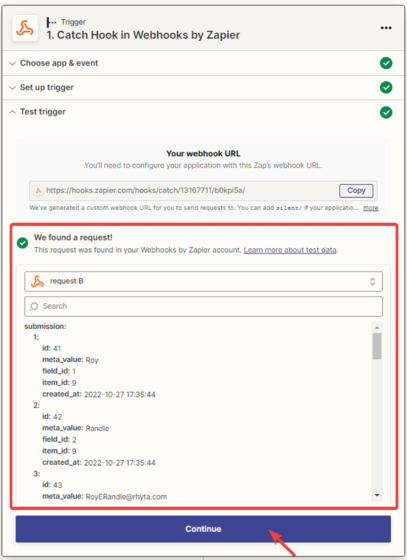
10. The next step is that Zapier will find the entry in Formidable Forms – Entries.

and display all the information available in its profile. Click the “Continue” button.
Setting up the action in the “AirTable” service.
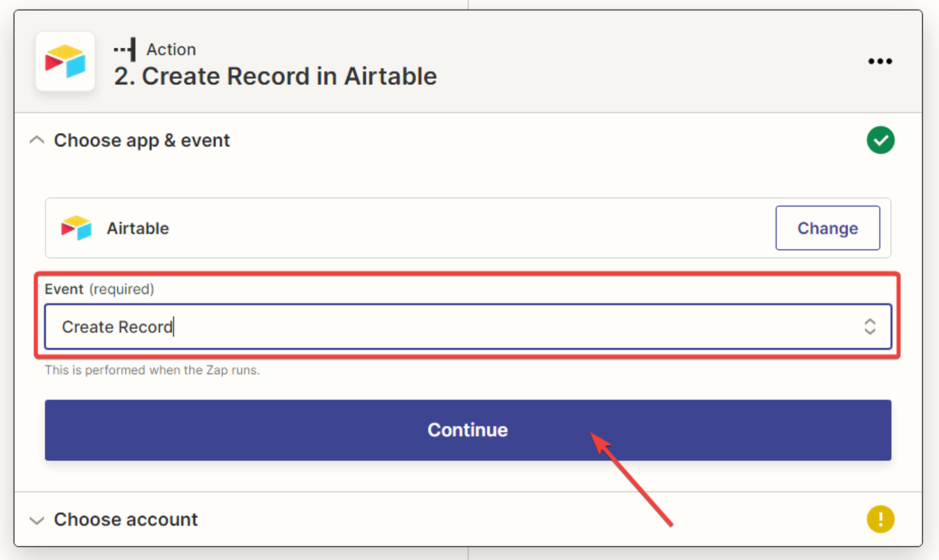
11. In the next window, you need to specify the action that will be performed when a user fills out and submits the form on the website. For the “AirTable” application, choose “Create Record” and click “Continue.”
12. Next, you need to connect the “AirTable” account and click “Continue.”
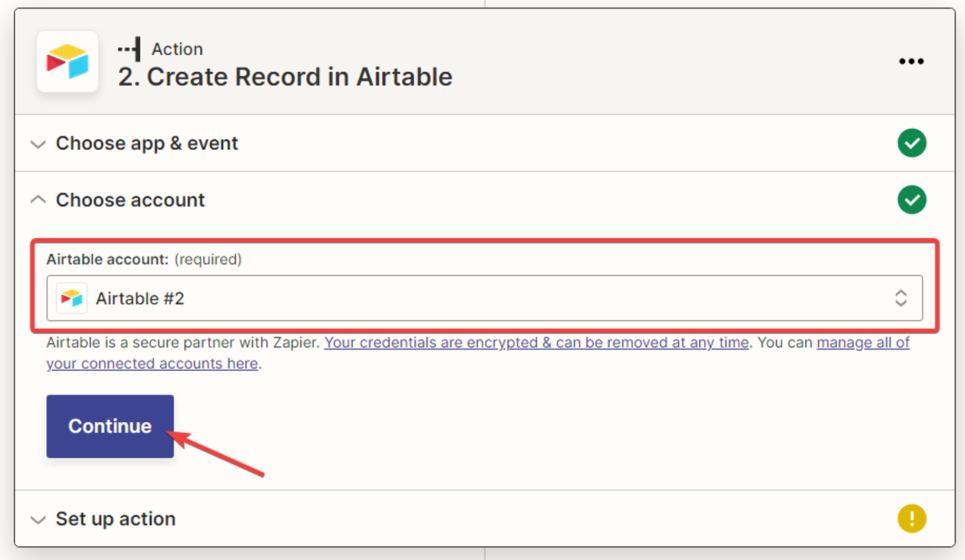
13. Next, you need to set up the connection between the “Webhooks by Zapier” application and “AirTable” in Zapier by filling in the data in the provided fields. After filling in all the fields, click “Continue.”
14. You need to test the connection between “Webhooks by Zapier” and “HubSpot.”
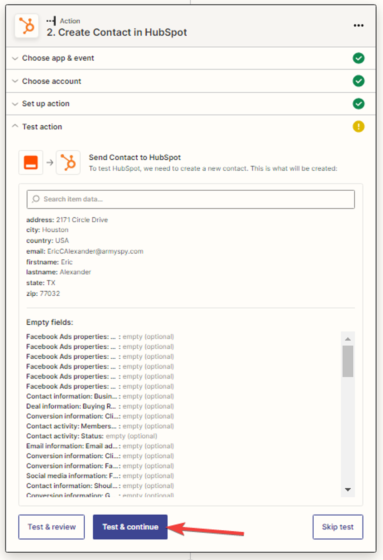
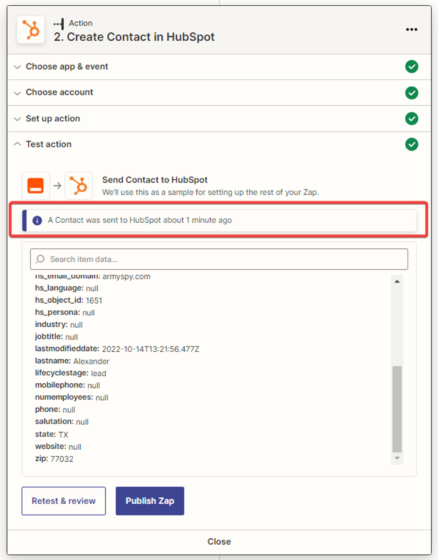
15. A new contact has been created in HubSpot.

16. After a successful test, click the “Publish Zap” button.
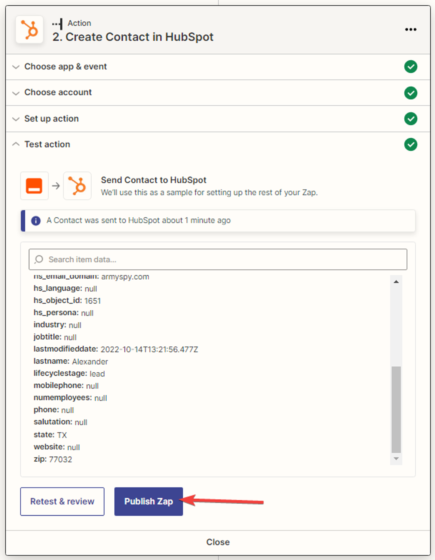
17. Zap is created, configured, and activated.

