How to integrate Google Sheets-Slack bundle using Zapier?

Streamline your Slack greetings with Google Sheets integration. Automate personalized messages for new team members to simplify the induction process.
In this tutorial, we will see how to create an automatic welcome message (#general) when adding a user to Slack.

Create a new connection and select Google Sheets in the “Event” field.
Specify the condition that will pull the trigger (adding a new field, in our case, the field – Username).
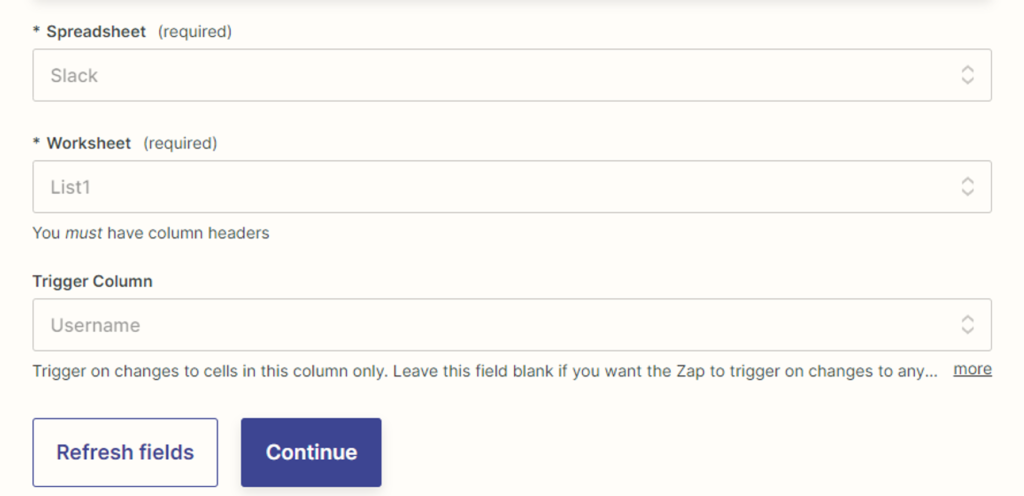
Next, connect the account and select the document+sheet from which the data will be transferred.
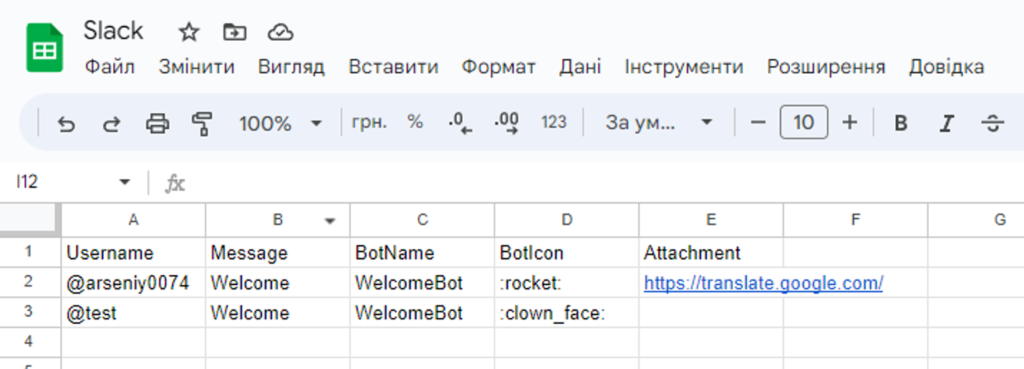
The document already contains data from which Zapier will receive information. Select our table with data and go to the next step.
Next, select Slack and set the “Message to public channel” event.

Connect our Slack account and move on to customizing the fields and selecting parameters.
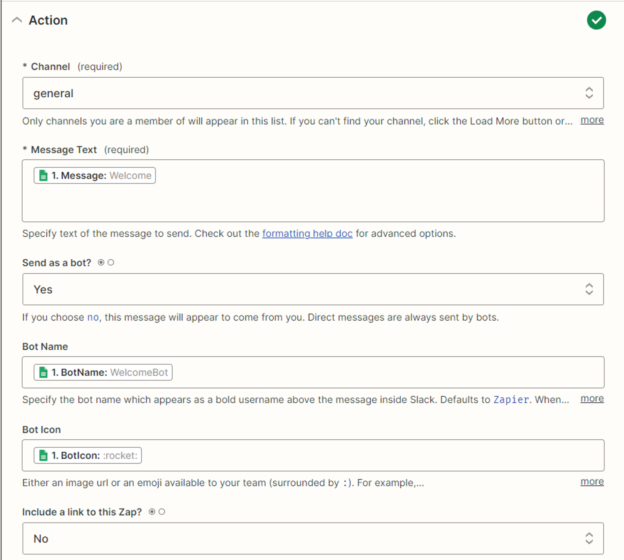
- Select the channel to which the message will be sent.
- Next, enter the message that will be sent or select the field we have from Google Sheets.
- Whether to send on behalf of the bot or not is the difference. In the first case we will be able to give it parameters: name, icon, and it will look like this in Slack.
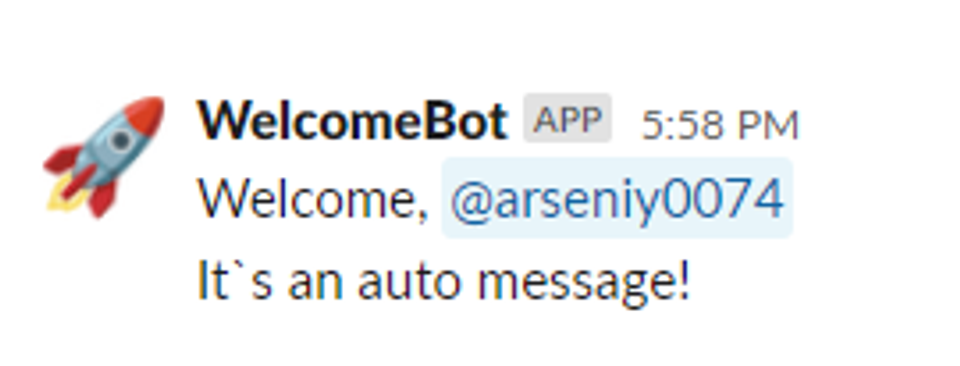
In the second case, the message will be sent on behalf of the main user. In my case, it is a Test.
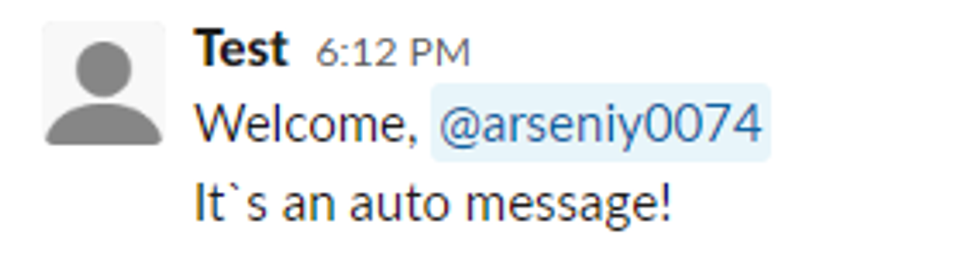
4. If we choose “no” in the “Include a link to this Zap?” field, we will see that this message is from a bot\user. Accordingly, the message will not include a link that indicates that this message was sent via Zapier
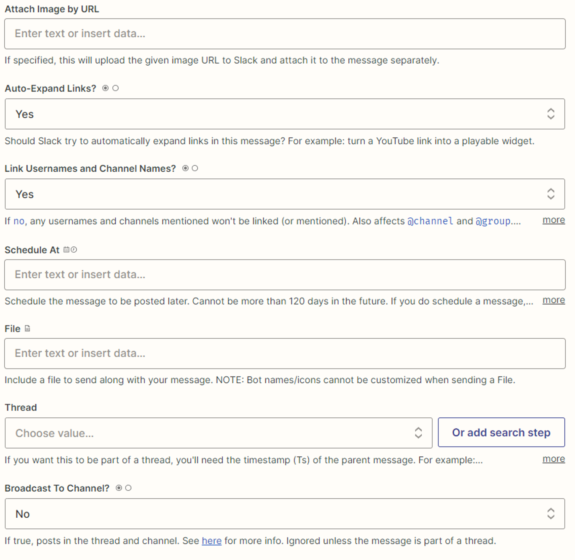
5. You can also attach a link to an image.
6. Be sure to specify “Yes” in the “Link Username” field, and a new user will be tagged in the post. Fill in the remaining fields as desired.
Complete the setup and conduct a test.


