How to integrate HubSpot – Notion bundle using Zapier?
in
Integrations | May 31, 2024
Organize your business and collaborate more effectively with HubSpot’s integration with Notion. Create a new record in the Notion database for each new contact, which speeds up the process.
Creating a new database on Notion when a new contact is created on HubSpot
How the integration works:
- A new contact is created on HubSpot
- A new database is created on Notion
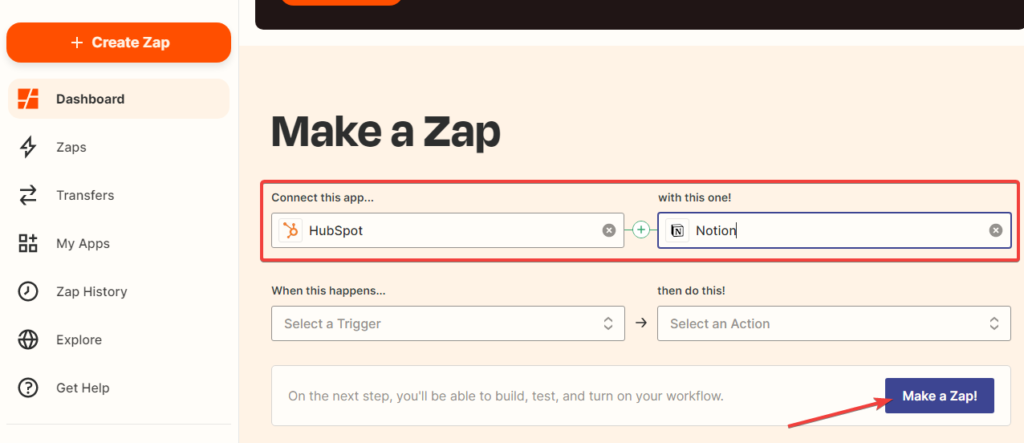
- Creating a Zap. On the Dashboard tab, select HubSpot and Notion and click “Make a Zap”
Configuring the trigger event for HubSpot
- In the dropdown menu, select “New Contact” and click “Continue”. This way, the trigger will activate only when a new contact is added to your HubSpot account

- Next, select your HubSpot account and click “Continue”

- Click on “Continue”. You can add additional properties to retrieve in the box above the button.
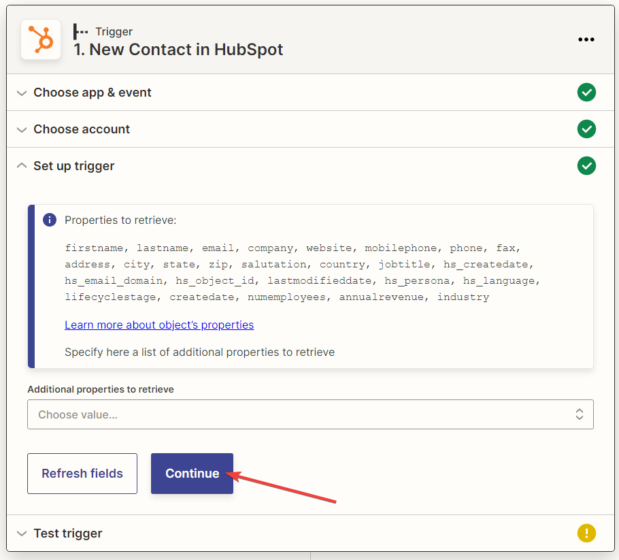
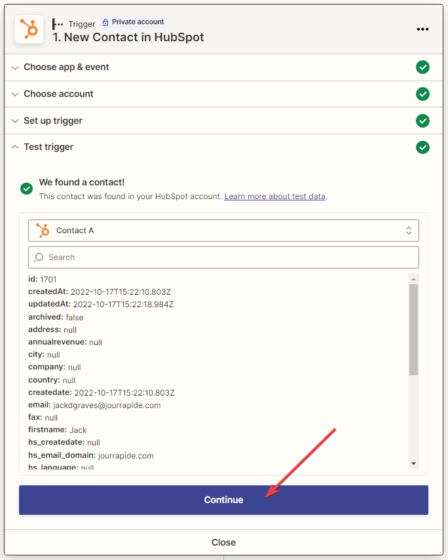
- Test the trigger by pressing on the corresponding “Test trigger” button

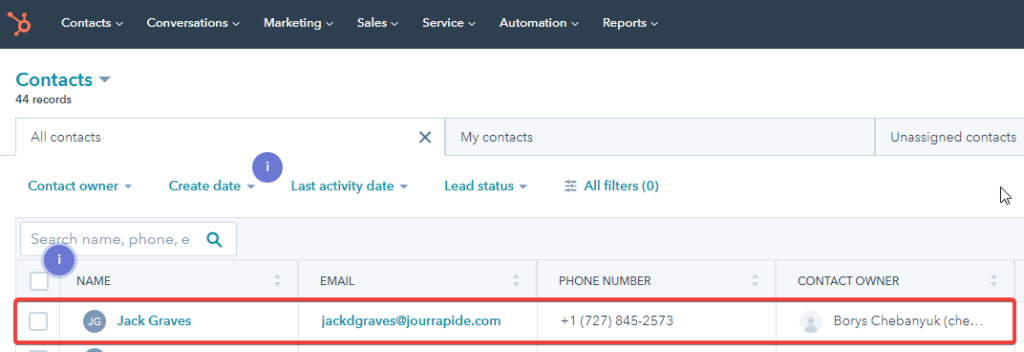
- The system should then find the contact and display all the information available in their profile. If everything is correct, click on “Continue”
Configuring actions for Notion
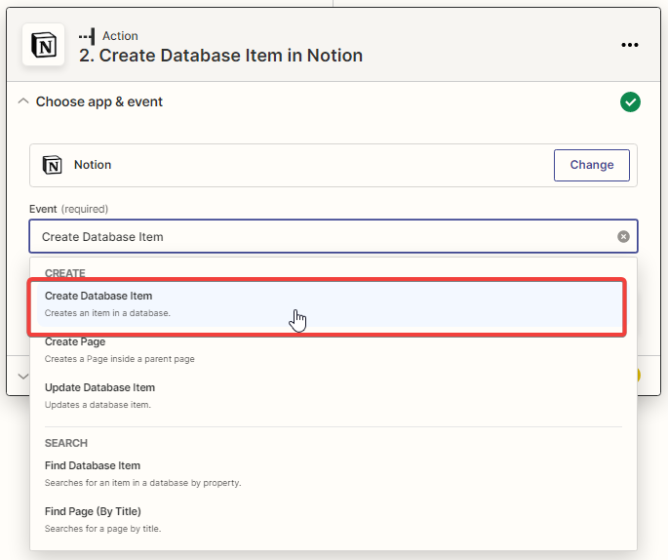
- In the next dialogue box, select the action to execute when a new contact is created. In our case, select “Create Database Item” in the dropdown menu and click “Continue”
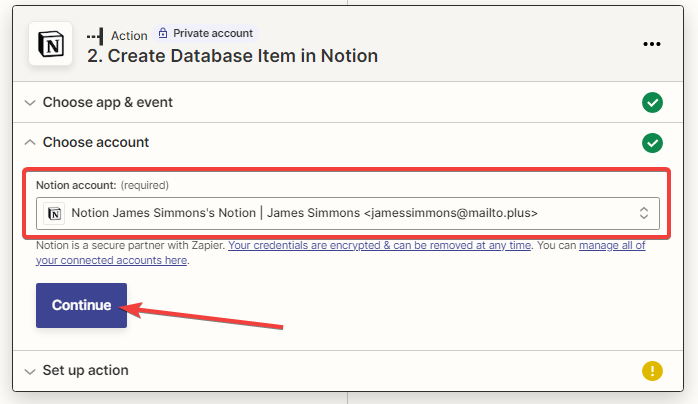
- Next, select your Notion account and click “Continue”
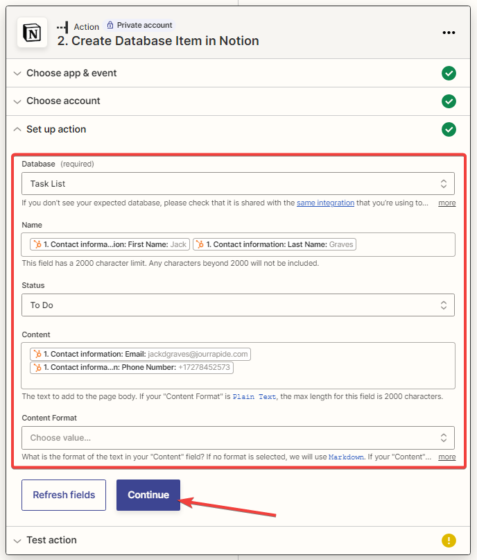
- Next, you need to set up the connection between Notion and HubSpot. Fill in all of the required fields in which the data should be imported and click “Continue”
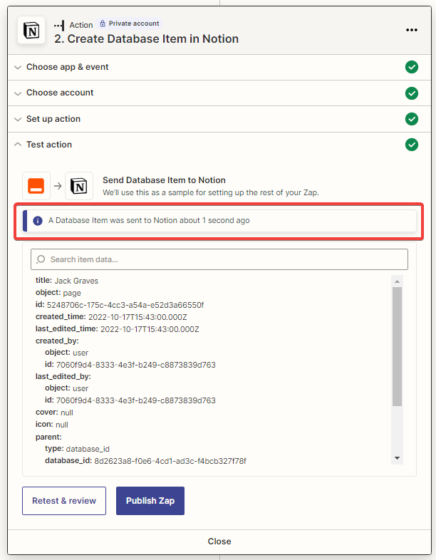
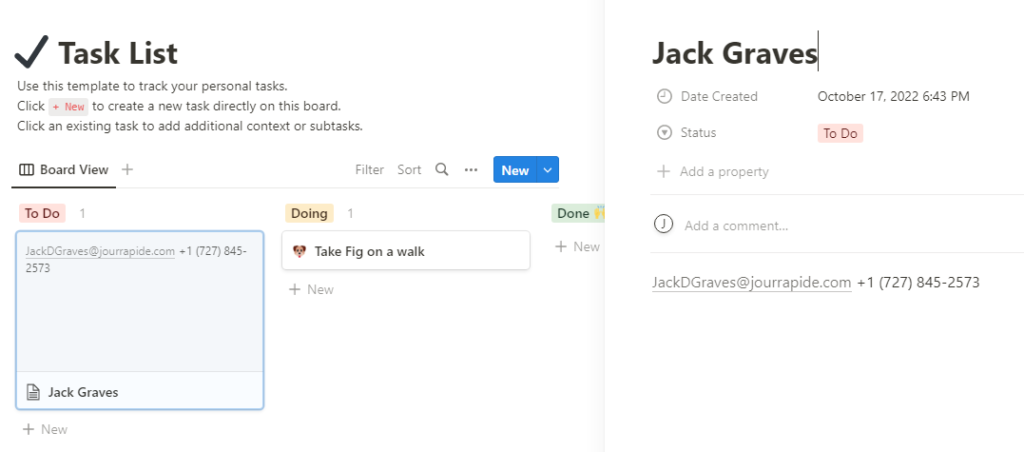
- Then, you need to test the connection between HubSpot and Notion. If everything is done correctly, you should be able to see the test data on Notion
- Click on “Publish Zap”
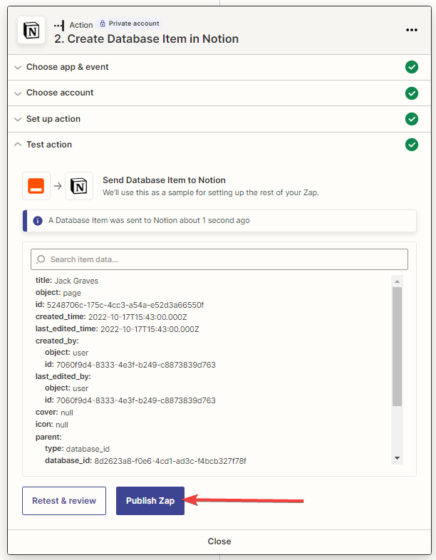
After that, the Zap is set up, configured, and active.

