How to integrate Mailchimp – HubSpot bundle using Zapier?

Save time with Zapier: Automate contact updates in HubSpot when Mailchimp gets a new subscriber. Improve workflow productivity with our guide for seamless platform communication.
Creating contacts in HubSpot when new subscribers arrive in Mailchimp.
How the integration works:
Whenever you receive a new Mailchimp subscriber, Zapier automatically creates a new contact or updates an existing one in HubSpot based on the email.
- Creating the Zap: While on the ‘Dashboard‘ tab, select the ‘Mailchimp‘ and ‘HubSpot‘ applications and click the ‘Make a Zap‘ button:

2. Select the trigger event. This event, which occurs in the triggering application, signals Zapier to initiate the Zap. Choose ‘New Subscriber’ from the dropdown list and click ‘Continue’. The trigger will activate when a new subscriber is added to Mailchimp.

3. Next, you need to specify the ‘Mailchimp’ account and click the ‘Continue’ button.

4. Next, you need to specify the trigger settings by selecting the audience in Mailchimp and clicking the ‘Continue’ button.

5. The next step is to test the created trigger by clicking the ‘Test trigger’ button.
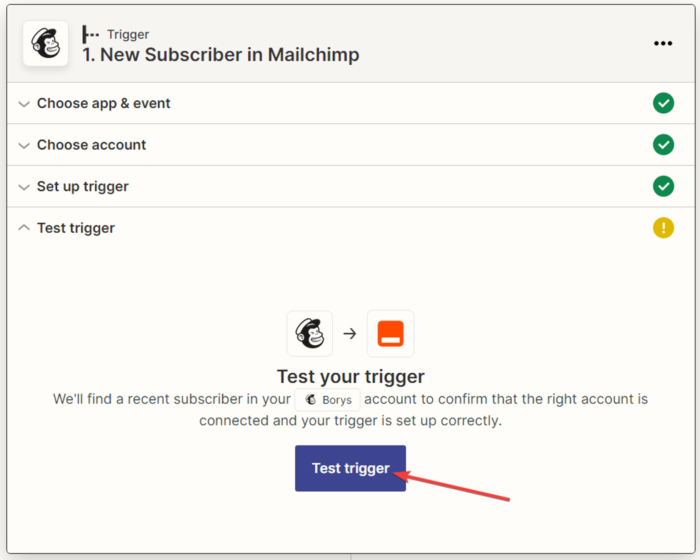
6. If a notification appears indicating that the data is found, click the ‘Continue’ button.

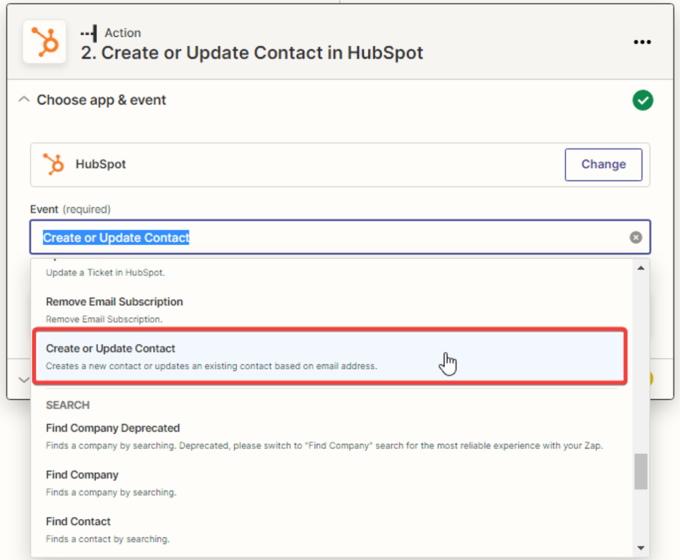
7. Setting up the data reception in the ‘HubSpot’ service. In the next window, specify the action that will be performed when new subscribers are created in the ‘Mailchimp’ application. From the dropdown list, choose ‘Create or Update Contact’ and click ‘Continue’.
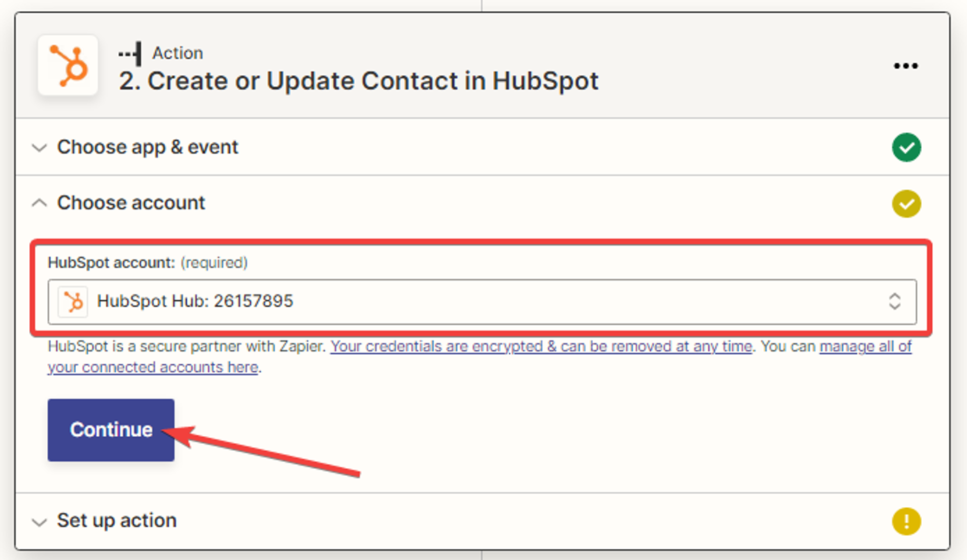
8. Next, select the ‘HubSpot’ account and click the ‘Continue’ button.
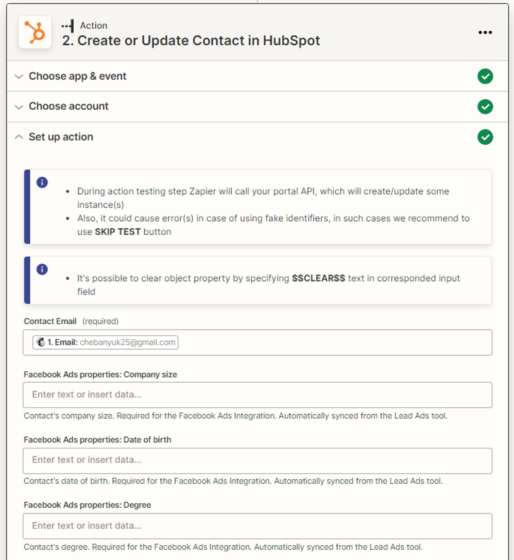
9. Next, you need to configure the action in ‘HubSpot’ by filling in the fields. The data is selected from the dropdown list as variables, then click the ‘Continue’ button.

10. You need to test the connection between ‘Mailchimp’ and ‘HubSpot’.

11. In the next window, a notification appears indicating that the contact has been created in ‘HubSpot’.

12. Сheck the test data:
In Mailchimp

In HubSpot
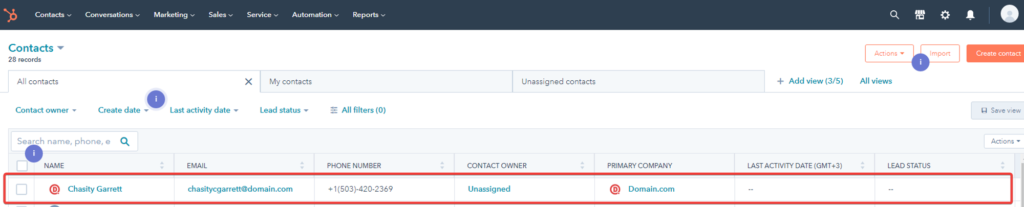
The contact has been created in the list of contacts.
13. After a successful test, click the ‘Publish Zap‘ button.
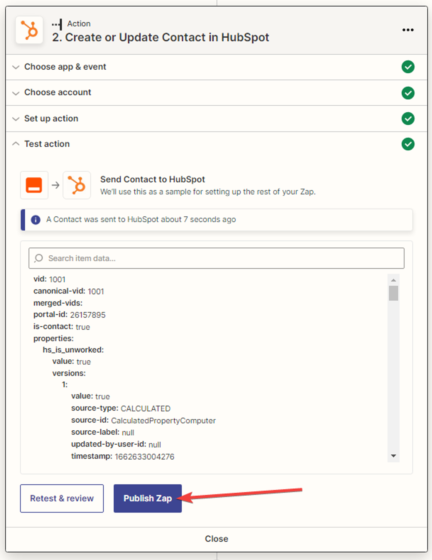
The Zap for creating contacts in HubSpot when new subscribers are added in Mailchimp is configured and activated.

