How to integrate Shopify – Zoho CRM bundle using Zapier?

Integrate Shopify and Zoho CRM using Zapier to grow your e-commerce business. Onboard new customers smoothly by following our guide while handling lead qualification.
Adding new Shopify customers to Zoho CRM as leads (contacts) and matching them with existing ones.
How the integration works:
- Someone new makes a purchase in the Shopify store.
- Zapier checks if the new customer exists in the Zoho CRM database. If the customer is not present, Zapier creates a new record.
What you need:
- Shopify account.
- Zoho CRM account.
- Creating a Zap: While on the “Dashboard” tab, select the “Shopify” and “Zoho CRM” applications, then click the “Make a Zap” button.

Setting up a Trigger Event
2. Choosing the trigger event. This event, occurring in the trigger application, signals Zapier to initiate the Zap. Select “New Customer” from the drop-down list and click “Continue”; the trigger will activate when a new contact is added to the “Shopify” account.
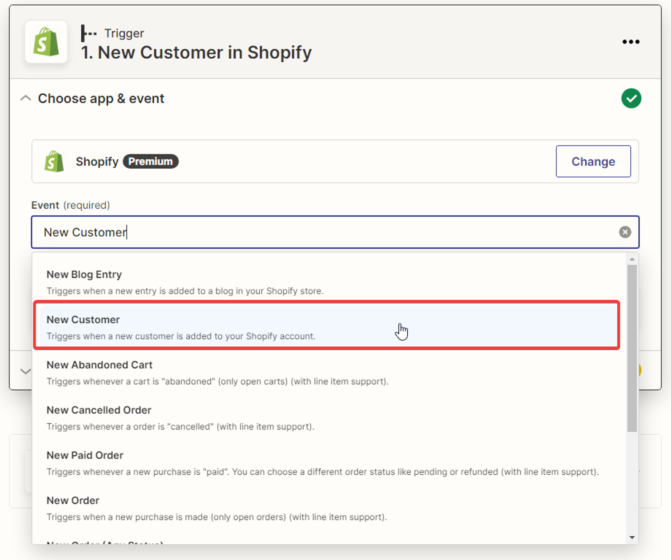
3. Next, you need to specify the “Shopify” account and click the “Continue” button.

4. Next, you need to test the trigger by clicking the “Test trigger” button.

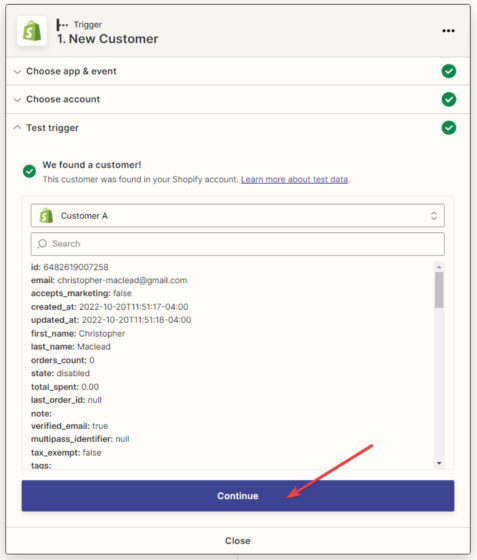
5. The next step is for the system to find the customer and display all the information available in the customer’s profile. Click the “Continue” button after that.
Сonfiguring the action in the “Zoho CRM” service
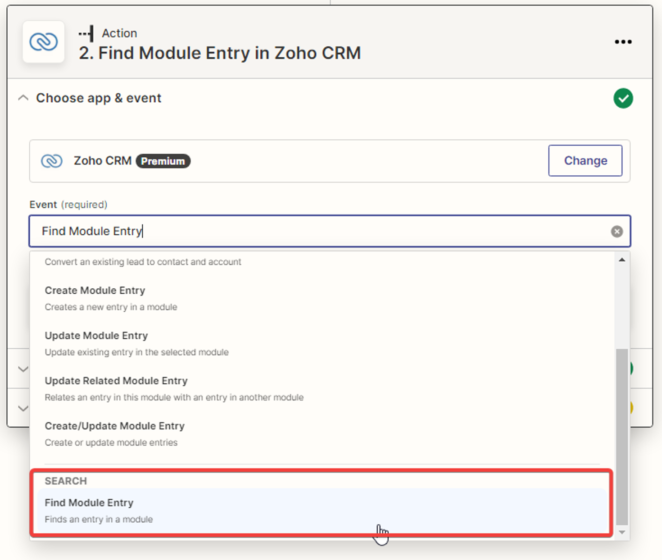
6. In the next window, you need to specify the action that will be performed when adding a new customer in the “Zoho CRM” application. Choose “Find Module Entry” meaning Zapier will search and match the new customer with existing records in the specified module, and click “Continue”.
7. Next, you need to specify the “Zoho CRM” account and click the “Continue” button.

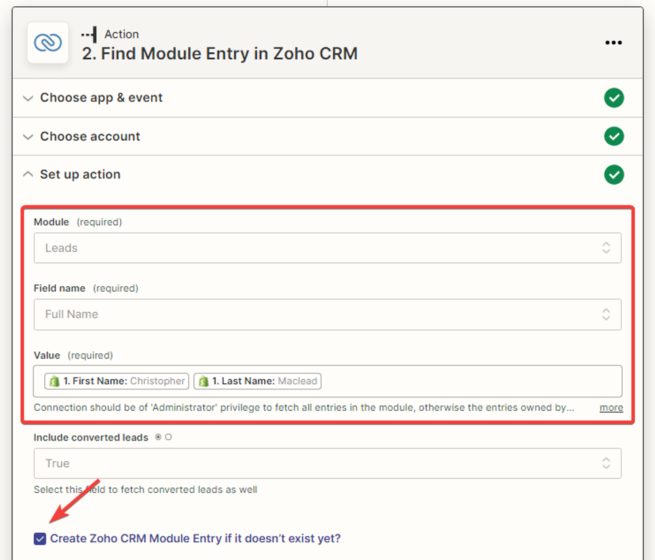
8. Next, you need to set up the connection between the “Shopify” and “Zoho CRM” applications. Fill in the required fields that will be matched with the data from the new customer, using variables from the drop-down list. After that, check the box to ensure that a record is created in the Zoho CRM module if it is absent.
Fill in the newly opened fields with the data for the created lead (contact).
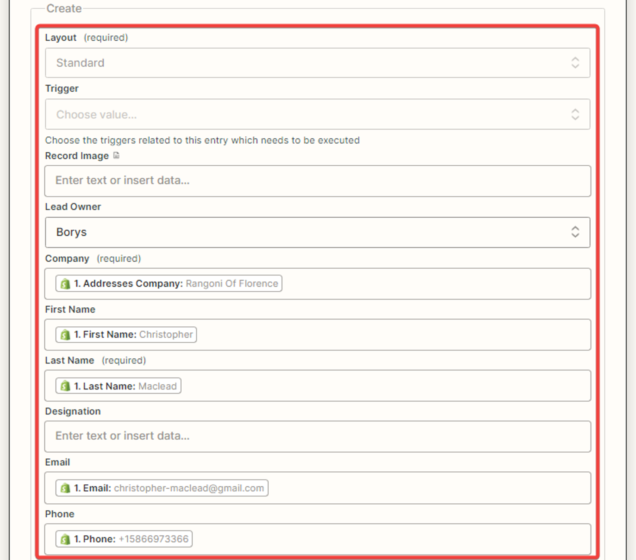
After filling in all the required fields, click the “Continue” button.

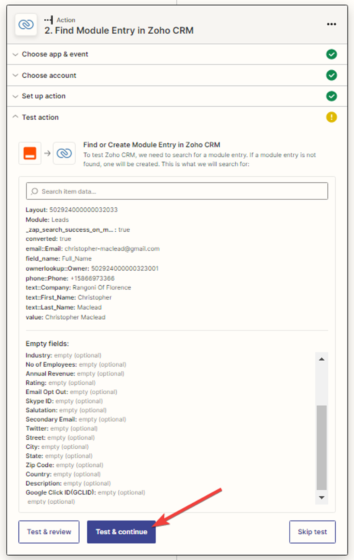
9. To test the connection between “Shopify” and “HubSpot”:
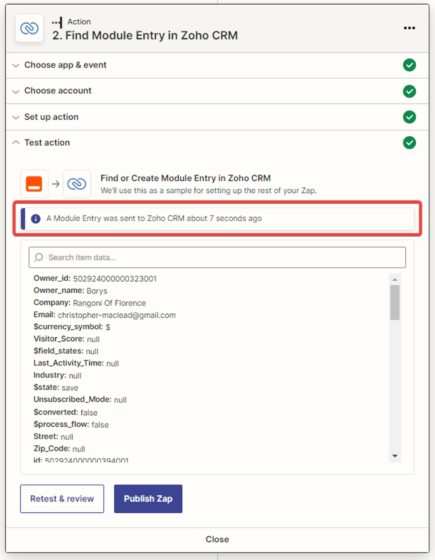
10. Checking the test data on the “Zoho CRM” service in the “Leads” tab. Since there was no existing record in the system, Zapier created a new entry.

11. After a successful test, click the “Publish Zap” button.

The Zap has been created, configured, and activated.