How to integrate Timely – Pipedrive bundle using Zapier?

Elevate your client management. Discover how this clever automation can transform your new Timely clients into Pipedrive contacts, improving your sales workflow.
Creating a new person in Pipedrive when a new client is created in Timely.
How the integration works:
- Timely triggers for any new or updated client;
- Zapier automatically creates a new person in Pipedrive.
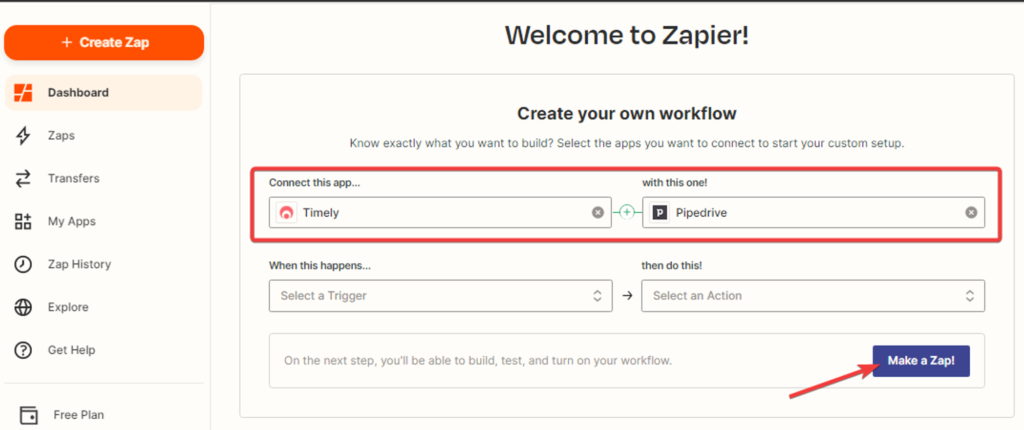
- Creating a Zap. While on the “Dashboard” tab, select the “Timely” and “Pipedrive” applications and click the “Make a Zap” button:
Setting up the trigger event in the “Timely” service
2. Choosing the trigger event…
Select “New Client” from the drop-down list and click “Continue“; the trigger will activate when a new client is added in “Timely“.
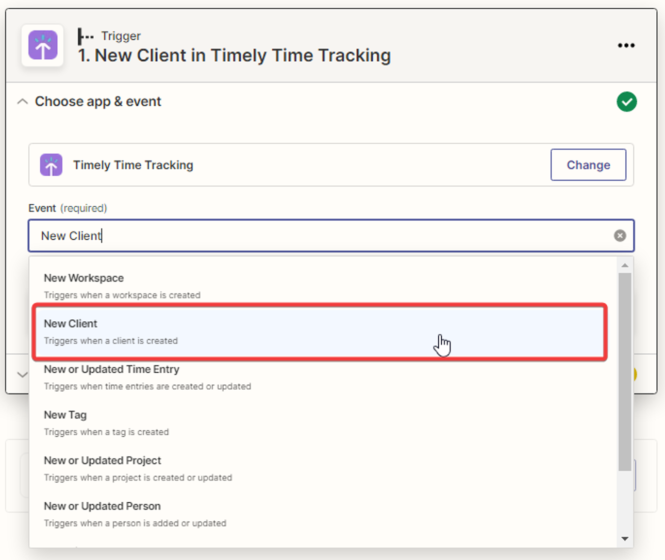
3. Next, you need to specify the “Timely” account and click the “Continue” button.

4. Next, you need to configure the trigger settings, select the workspace, and click the “Continue” button.

5. After that, you need to test the trigger by clicking the “Test trigger” button.
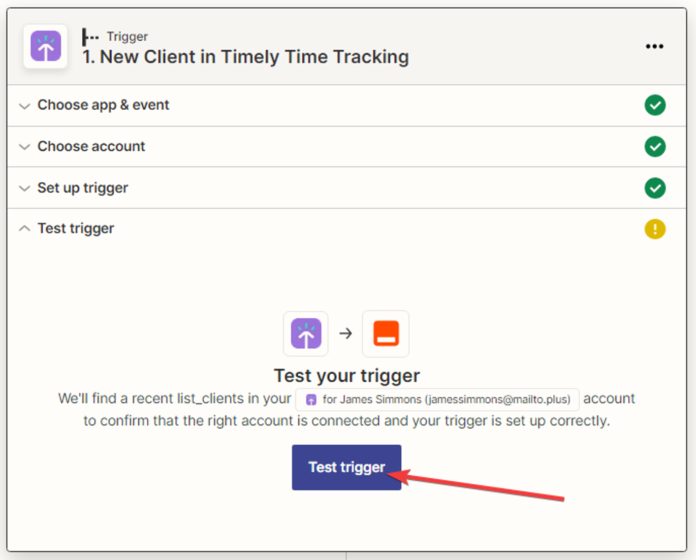
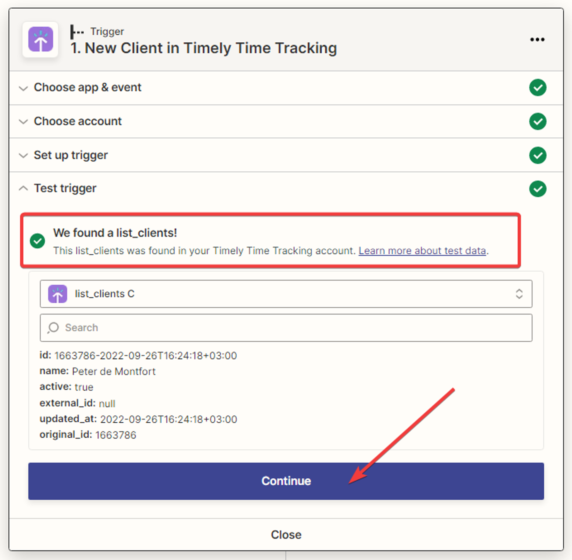
6. The next step is for the system to find the record in “Timely”.
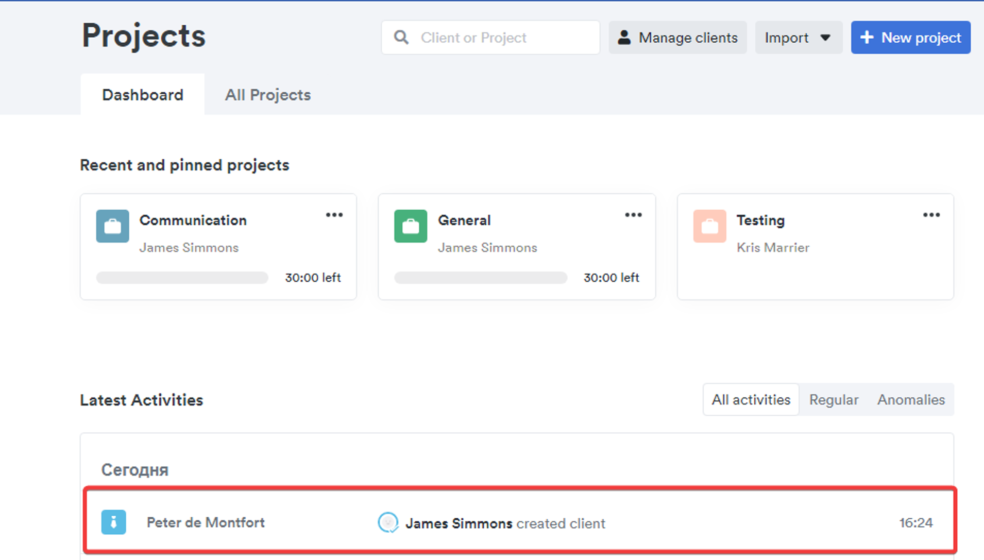
and display all the information available in its profile. Click the “Continue” button.
Setting up the action in the “Pipedrive” service
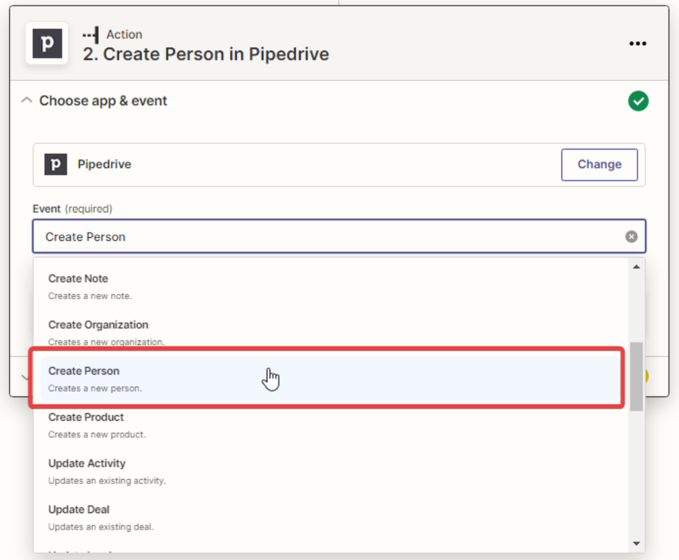
7. In the next window, you need to specify the action that will be performed when creating a new client. For the “Pipedrive” application, choose “Create Person” and click “Continue”
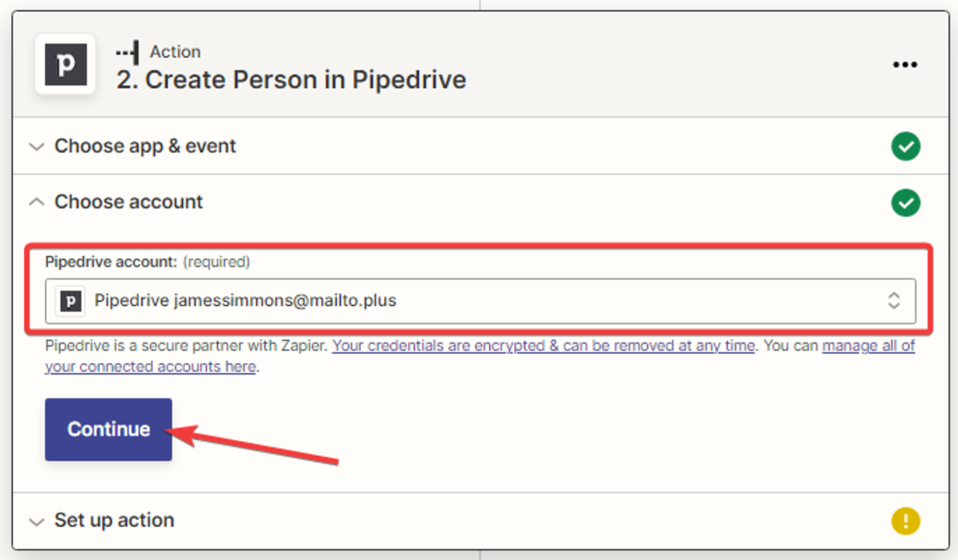
8. Next, you need to connect the “Pipedrive” account and click “Continue”.
9. Next, you need to set up the connection between the “Timely” application and “Pipedrive”. Fill in the data from the provided variables or constants. After filling in the fields, click the “Continue” button.

10. You need to test the connection between “Timely” and “Pipedrive”.
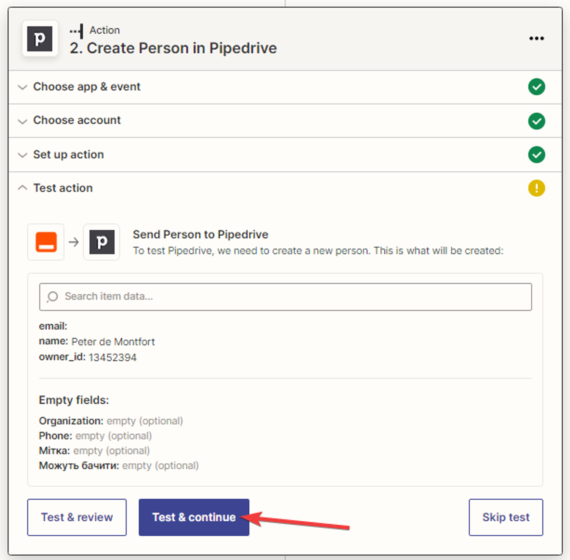
11. The person has been sent to Pipedrive.

12. After a successful test, click the “Publish Zap” button.

