How to integrate Zoho CRM – Zoho Books using Zapier?

Save time by allowing connections of new Zoho CRM contacts to be easily created and automatically added to Zoho books accounts. Our advice lets you easily get your system up and running on time.
Creating a new customer in Zoho Books when a new contact is created in Zoho CRM.
To integrate with these platforms, a Zapier Professional plan is required.
How the integration works:
- A new contact is created in Zoho CRM.
- Zapier creates a new customer in Zoho Books.
1. Creating the Zap: While on the ‘Dashboard‘ tab, select the ‘Zoho CRM‘ and ‘Zoho Books‘ applications, and click the ‘Make a Zap‘ button.

Setting up the trigger event.
2. Selecting the trigger event. This event, which occurs in the triggering application, signals Zapier to initiate the Zap. Choose ‘New Contact‘ from the dropdown list and click ‘Continue‘; the trigger will activate when a new contact is added to the ‘Zoho CRM‘ account.

3. Next, you need to specify the ‘Zoho CRM’ account and click the ‘Continue’ button.

4. Next, you need to test the trigger by clicking the ‘Test trigger’ button.

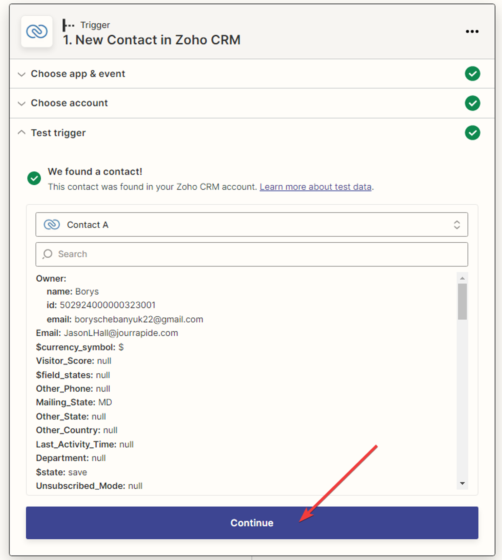
5. The next step is for Zapier to find the contact and display all the information available in its profile. Click the ‘Continue’ button.
Configuring the action in the ‘Zoho Books’ service.
6. In the next window, you need to specify the action that will be performed when a new contact is added in the ‘Zoho CRM‘ application. Choose ‘Create Customer,’ meaning Zapier will create a new customer in Zoho Books. Click ‘Continue‘.

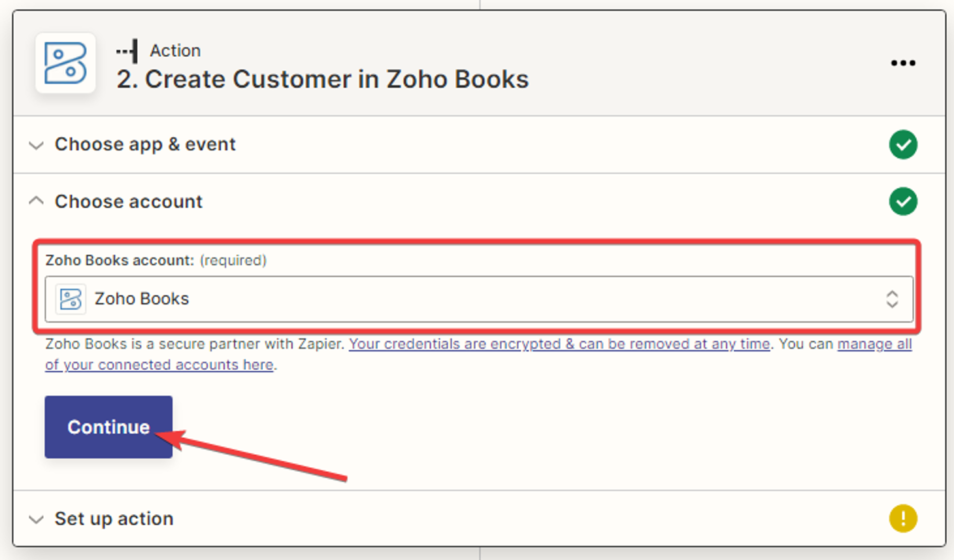
7. Next, you need to specify the ‘Zoho Books‘ account and click the ‘Continue‘ button.
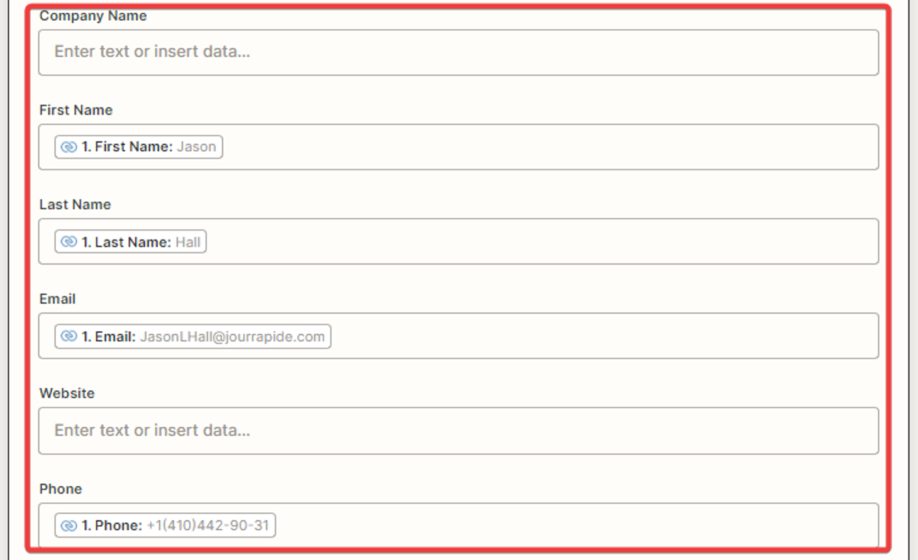
8. Next, you need to set up the connection between the ‘Zoho CRM’ and ‘Zoho Books’ applications. Fill in the required fields, including the fields with contact variable data. After filling in all the necessary fields, click the ‘Continue’ button.

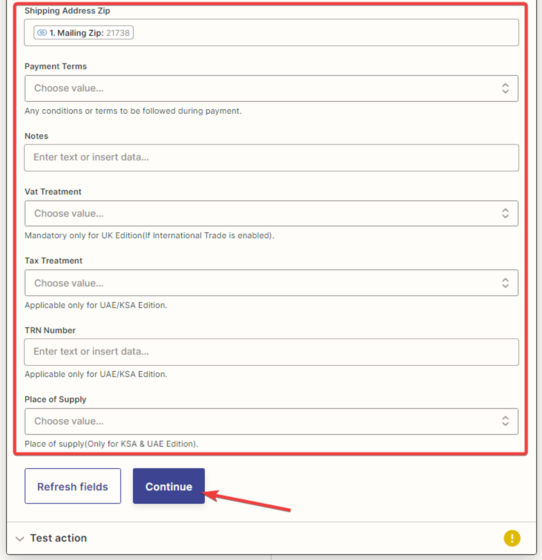
9. You need to test the connection between ‘Zoho CRM’ and ‘Zoho Books’.
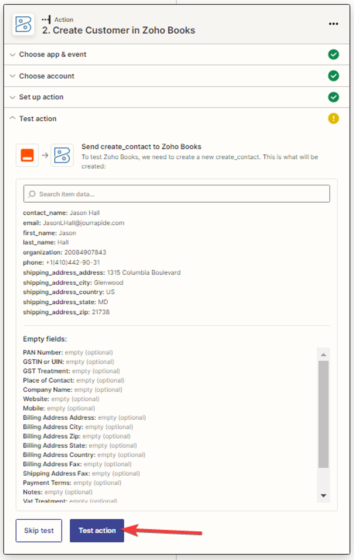

10. Check the test data on the ‘Zoho CRM’ service under the Sales – Customers tab.

11. After a successful test, click the ‘Publish Zap’ button.
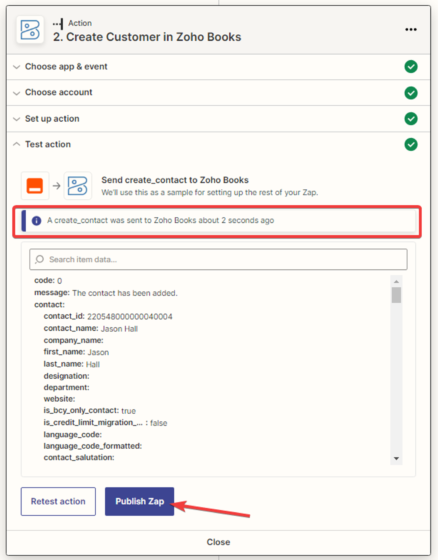
12. The Zap has been created, configured, and activated.

