How to integration Google Contacts – Mailchimp bundle using Zapier?
in
Integrations | June 11, 2024
Synchronize your contact list by automatically subscribing new contacts to Mailchimp lists. This basic approach guarantees your marketing lists are updated without much hassle.
Adding a new subscriber to Mailchimp when a new contact is created on Google Contacts
How the integration works:
- A new contact on Google Contacts is created
- Zapier creates a new subscriber on Mailchimp.
- Creating a Zap. On the Dashboard tab, select “Google Contacts” and “Mailchimp” and click “Make a Zap

Configuring the trigger event
- Selecting the trigger event. A trigger event is a certain action in the trigger app that tells Zapier to activate the Zap. Select the “New or Updated Contact” option in the dropdown menu and click “Continue”. This way, the trigger will only activate when a new contact is added to your Google Contacts.

- Then, select your Google Contacts account and click “Continue”

- Test the trigger by clicking on the corresponding “Test trigger” button. The system should then find the contact and display all the information available in their profile. If everything is correct, click on “Continue”

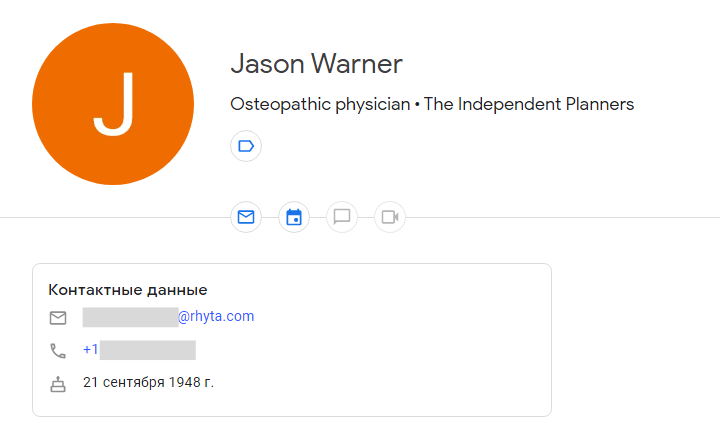

Setting up the action on Mailchimp
- In the next dialogue box, select the action to execute when a new contact is created. In our case, select “Add/Update Subscriber” in the dropdown menu and click “Continue”

- Next, select your Mailchimp account and click “Continue”

- Next, you need to set up the connection between Mailchimp and Google Contacts. Fill in all of the required fields in which the data should be imported and click “Continue”

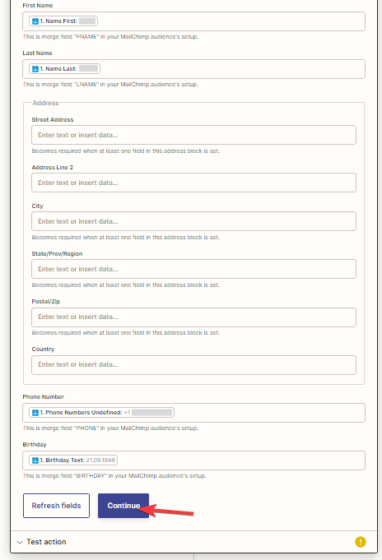
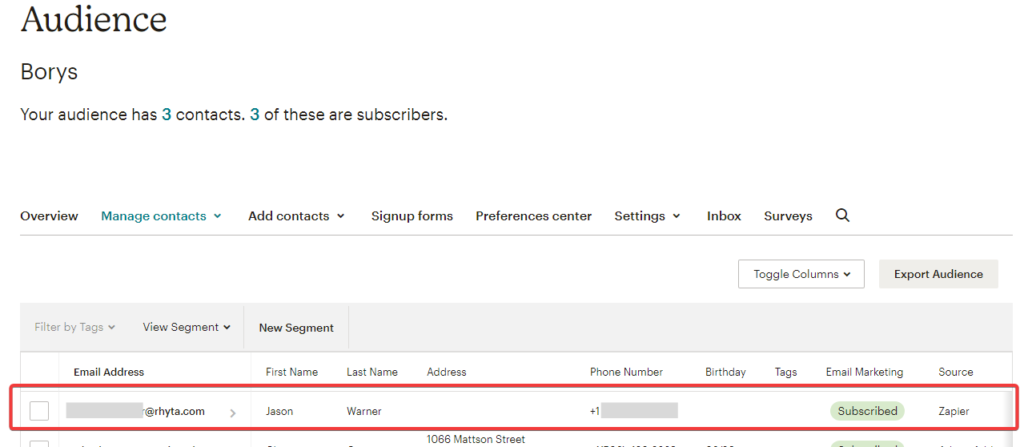
- Then, you need to test the connection between Google Contacts and Mailchimp. If everything is done correctly, you should be able to see the contact on Mailchimp.
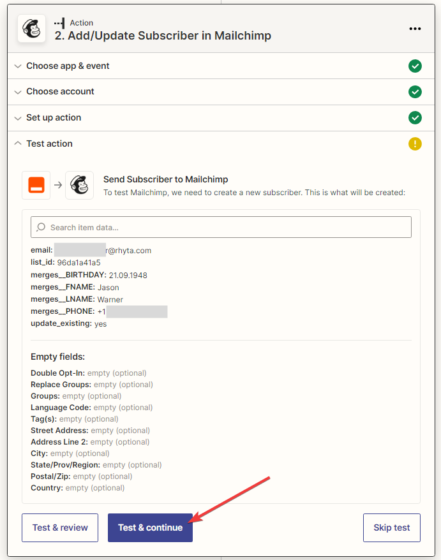
- Click on “Publish Zap”

After that, the Zap is set up, configured, and active.

